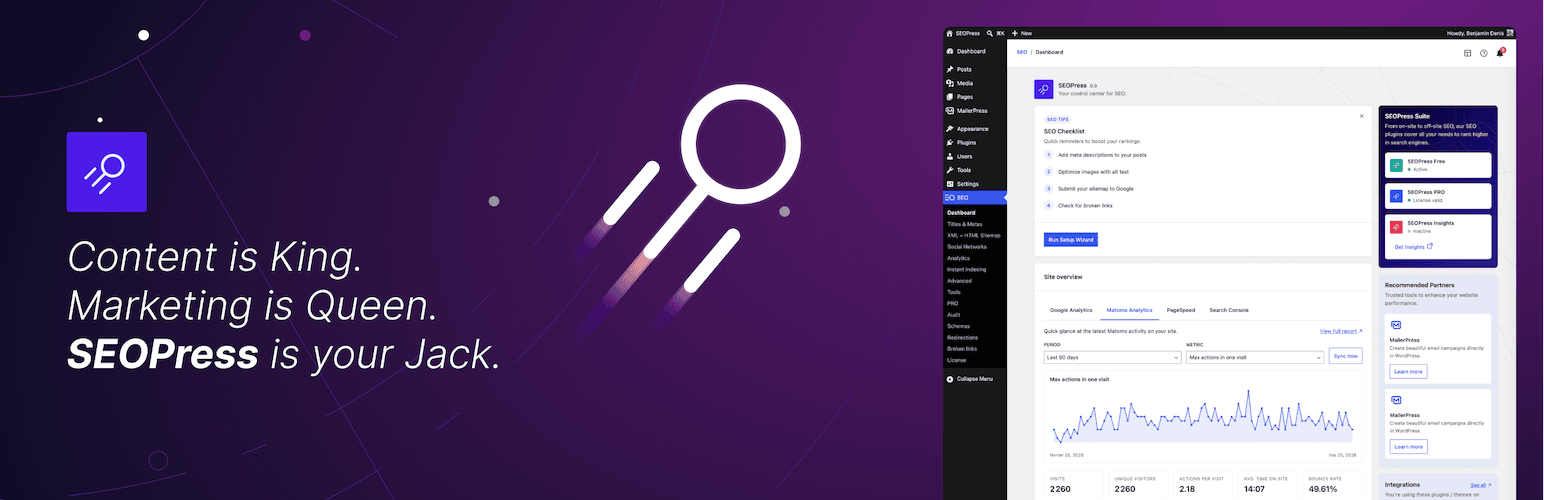
SEOPress
93WordPress SEO plugin with AI SEO metadata, schema, XML sitemap, redirections & Search Console. Privacy-fir...
Free
300k+ installs 4.8★ (1,246)
Lets you edit the WordPress admin menu. You can re-order, hide or rename menus, add custom menus and more.

Admin Menu Editor is a WordPress plugin that allows you to manually edit the Dashboard menu. You can reorder menus, show or hide specific items, and change permissions based on user roles. This plugin is suitable for users who want to customise their admin interface for better usability or security.
The plugin also includes features for creating custom menus, managing access to posts, and hiding plugins from certain users. It provides utility shortcodes for login/logout redirects and user information display, making it versatile for site administrators looking to enhance their WordPress experience.
Best for: This plugin suits WordPress site administrators who want to customise their admin menu and user access.
What it does well
Where it falls short
Admin Menu Editor provides a range of useful features for managing the WordPress admin interface. It is a practical tool for those looking to tailor their dashboard to specific needs.
Janis Elsts's own description of Admin Menu Editor, lightly tidied.
Admin Menu Editor lets you manually edit the Dashboard menu. You can reorder the menus, show/hide specific items, change permissions, and more.
Features
The Pro version lets you set per-role menu permissions, hide a menu from everyone except a specific user, export your admin menu, drag items between menu levels, make menus open in a new window and more. Try online demo.
Additional Features
Despite the name, this plugin is not limited to just editing the admin menu. You can also:
Shortcodes
The plugin provides a few utility shortcodes. These are mainly intended to help with creating login/logout redirects, but you can also use them in posts and pages.
[ame-wp-admin] – URL of the WordPress dashboard (with a trailing slash).[ame-home-url] – Site URL. Usually, this is the same as the URL in the “Site Address” field in Settings -> General.[ame-user-info field="..."] – Information about the logged-in user. Parameters:
field – The part of user profile to display. Supported fields include: ID, user_login, display_name, locale, user_nicename, user_url, and so on.placeholder – Optional. Text that will be shown if the visitor is not logged in.encoding – Optional. How to encode or escape the output. This is useful if you want to use the shortcode in your own HTML or JS code. Supported values: auto (default), html, attr, js, none.Notes
Other plugins for customising wp-admin.
WordPress SEO plugin with AI SEO metadata, schema, XML sitemap, redirections & Search Console. Privacy-fir...
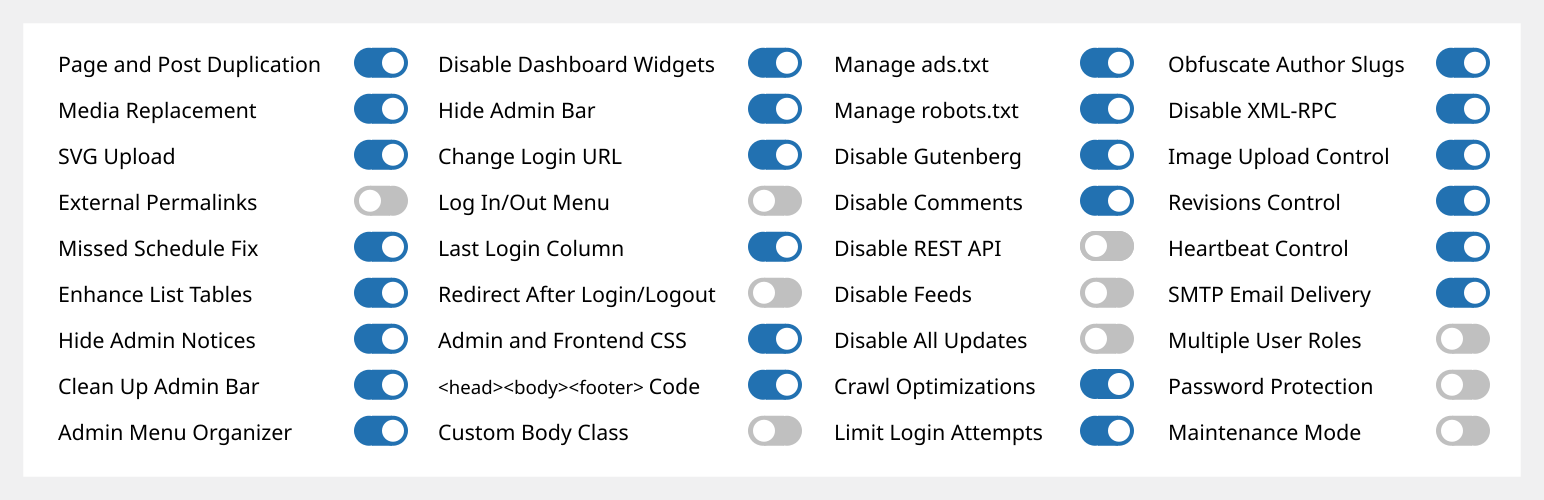
Duplicate post, post order, image resize, email via SMTP, admin menu editor, custom css / code, disable gutenb...
Admin UI for creating custom content types like post types and taxonomies
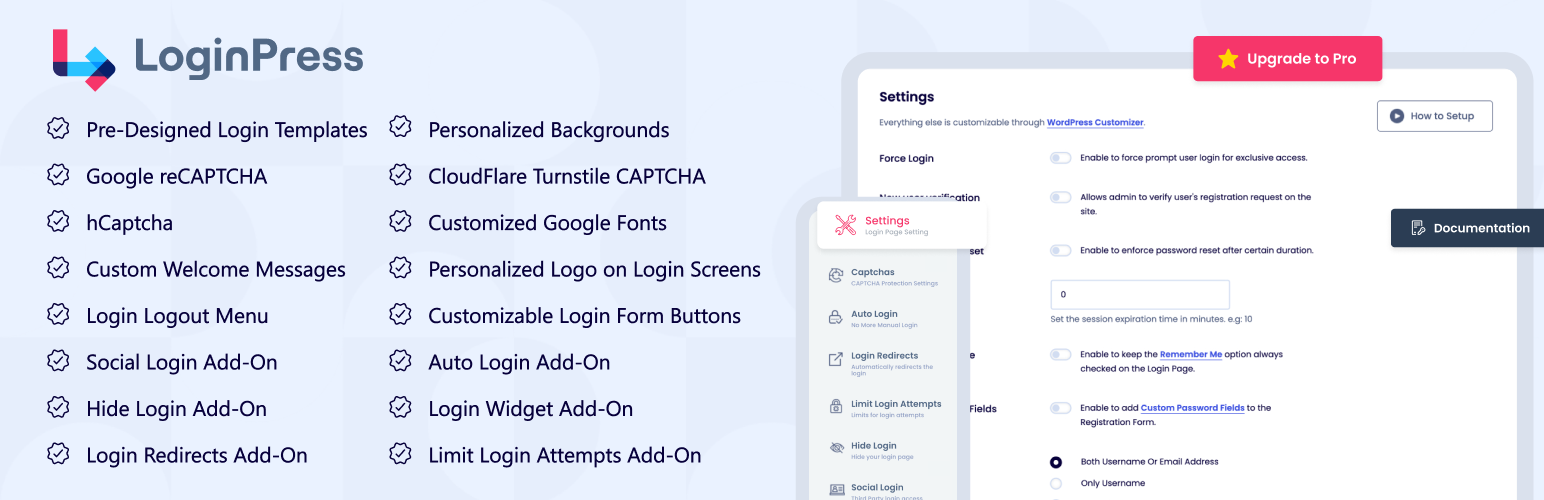
LoginPress is a Custom Login Page Customizer plugin allows you to easily customize the layout of login, admin...
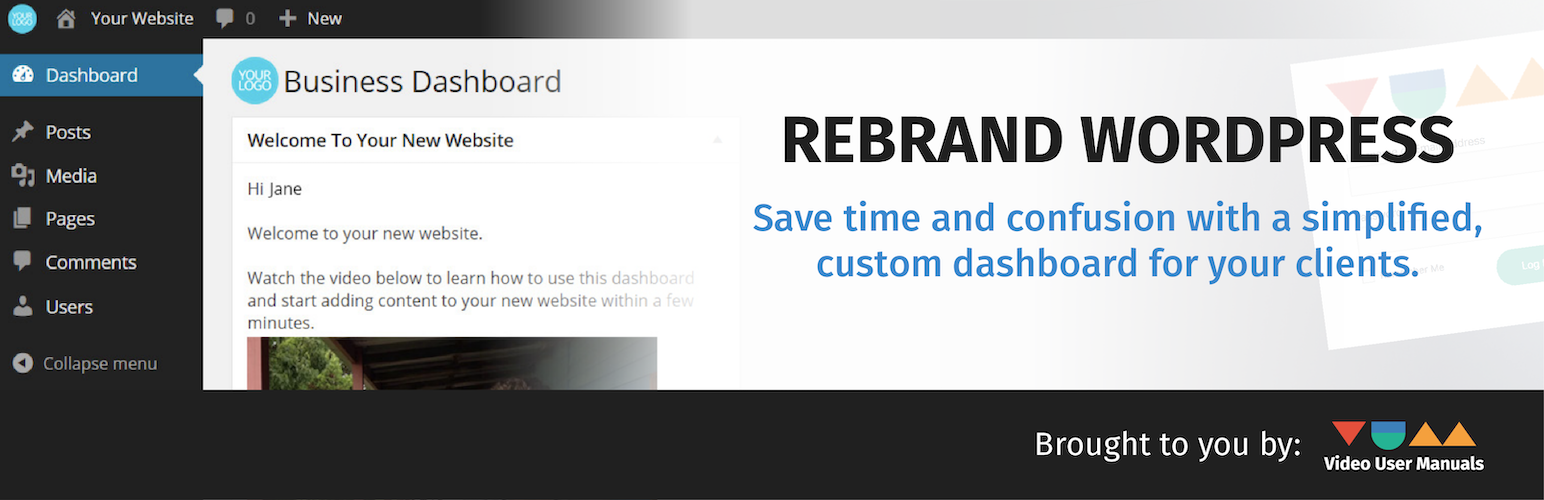
Customise dashboard panels and branding, hide menus plus lots more.
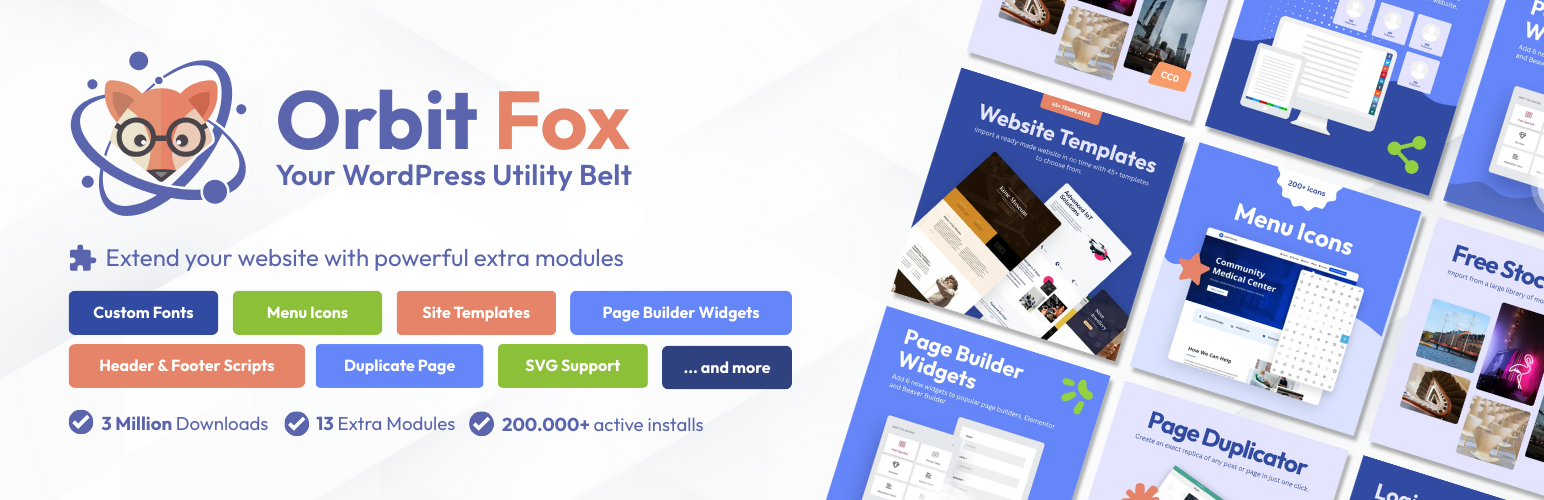
Add modules: share buttons, header/footer scripts, disable comments, reading progress, custom fonts, custom lo...