
Turn your data into WordPress apps with tables, forms, charts & maps — no code required, with optional hoo...
Free
10k+ installs 4.9★ (88)
A WordPress editor block which implements the options found in the WooCommerce Product Table shortcode

Gutenberg Block for WooCommerce Product Table is a WordPress plugin that allows you to create product tables using the Gutenberg editor. It requires the WooCommerce Product Table plugin to function and provides a user-friendly way to insert and manage product tables on your site.
This plugin is designed for users who want to display products in a quick order form layout, enabling customers to select products and variations directly from the table. It offers flexibility in terms of product selection, column options, and display settings.
Best for: This plugin suits WooCommerce users looking to enhance product display with tables in the Gutenberg editor.
What it does well
Where it falls short
Gutenberg Block for WooCommerce Product Table offers a straightforward solution for creating product tables, but its lack of active development may limit future support and features.
Barn2 Plugins's own description of Gutenberg Block for WooCommerce Product Table, lightly tidied.
Note: Since building this block plugin, we have added an interactive table builder to the main WooCommerce Product Table plugin. This makes it easy to create product tables and insert them into the block editor or any page builder. While you can still use the block plugin, it is no longer actively being developed and we recommend using the built-in table builder instead, which has more features.
Gutenberg Block for WooCommerce Product Table adds a user-friendly editor block to the WooCommerce Product Table plugin by Barn2, providing an easier way for Gutenberg users to create product tables. It requires WooCommerce Product Table (available separately) to work.
WooCommerce Product Table lists products in a quick order form layout designed to increase your sales and average order value. Instead of having to visit a separate page for each product, customers can select products, quantities and variations from the product table and quickly add them to the cart.
WooCommerce Product Table is highly flexible and you can choose which products to include, a wide range of column options, filters, instant AJAX search, add to cart button styles, and more.
Gutenberg Block for WooCommerce Product Table makes it easy to insert product tables anywhere on your site using the Gutenberg editor. This gives you full control over your product tables.
You can use the WooCommerce Product Table editor block to add as many product tables as you like. You can even add multiple tables to the same page.
By default, each product table will inherit the global options from the WooCommerce Product Table plugin settings page. You can override the following options for each individual block:
Select your product table columns:
Select which products to include in the table:
Add to cart column settings:
Product filters – Add filter dropdowns above the table so that customers can refine the list by category, tag, attribute, or custom taxonomy.
Other plugins for displaying data.
Turn your data into WordPress apps with tables, forms, charts & maps — no code required, with optional hoo...

Best WordPress table builder plugin packed with versatile features to create fully responsive data tables of a...

The best WordPress table plugin. Create responsive, and searchable tables and charts from Excel (.xlsx, .xls o...

Display your WooCommerce products in a responsive Product Slider, Product Carousel, or Product Grid Gallery wi...
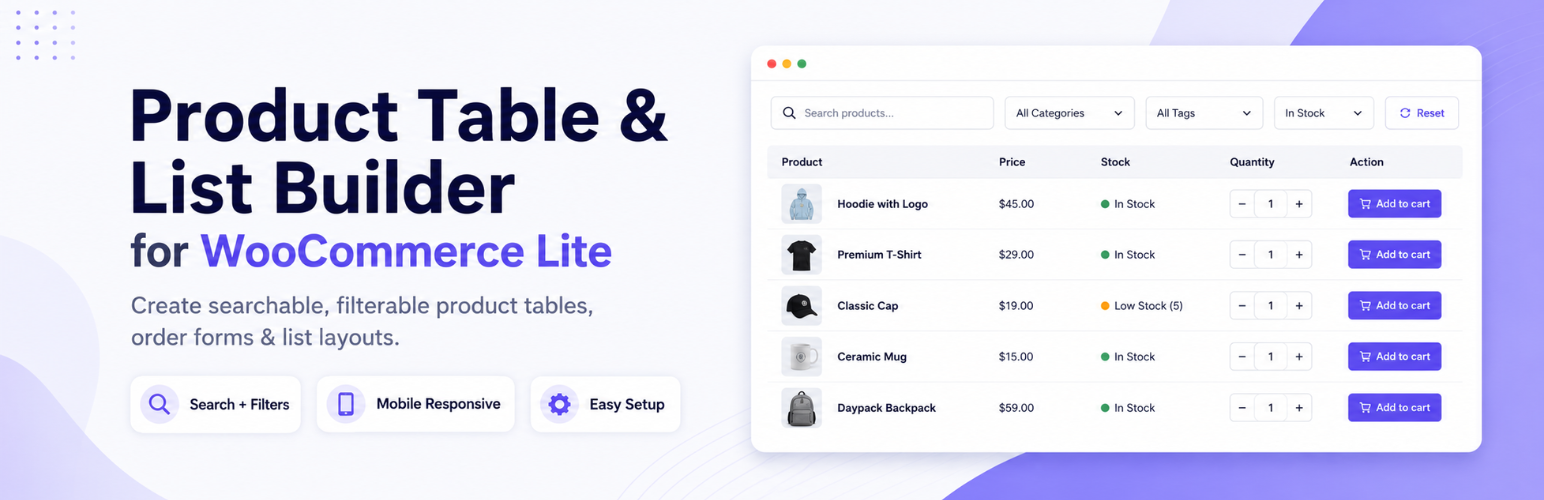
Create WooCommerce product tables that are searchable, sortable, filterable and mobile responsive. Help custom...
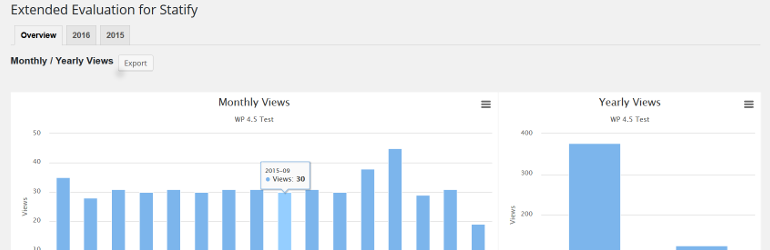
This plugin evaluates the data collected with the privacy-friendly Statify Plugin (data tables and diagrams)....