TablePress
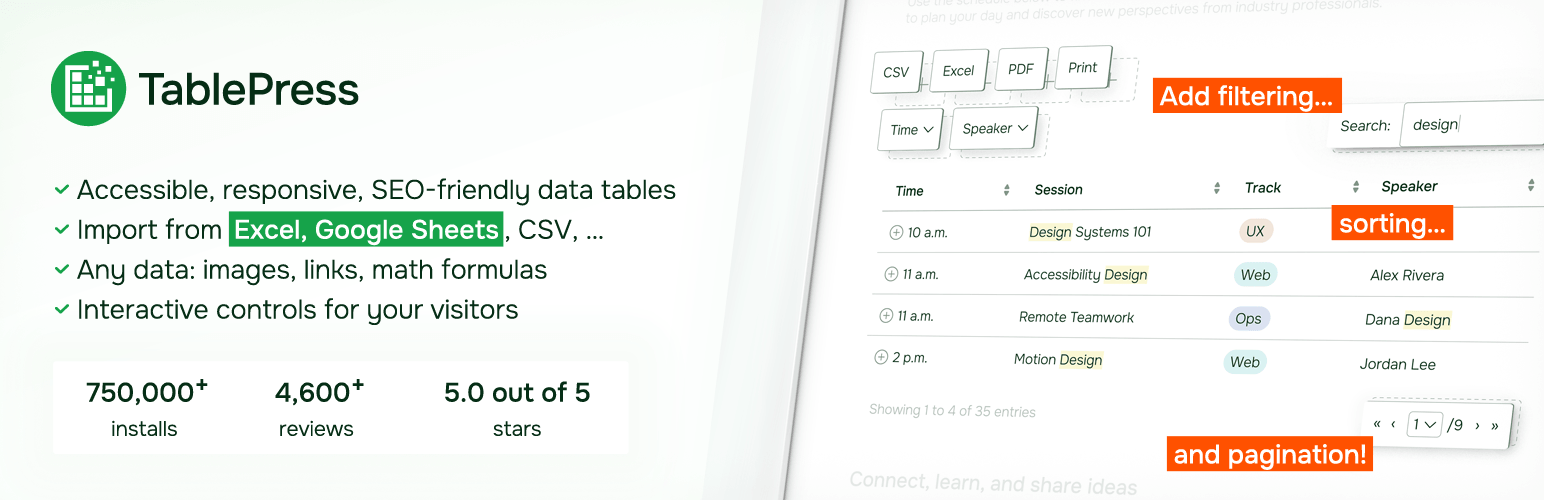
96Embed beautiful, accessible, and interactive tables into your WordPress website’s posts and pages, without hav...
Free
600k+ installs 5★ (4,625)
Blog Terminal provides a terminal-like box for embedding terminal commands within pages or posts.

Blog Terminal is a WordPress plugin that creates a terminal-like box for displaying terminal output or commands. You can wrap your terminal blocks with specific tags to simulate a Linux/Unix terminal or Windows cmd shell environment.
This plugin is suitable for users who want to demonstrate command-line usage in a visually appealing format on their WordPress sites. It allows for customization of the user, computer name, and current working directory within the terminal display.
Best for: This plugin is best for bloggers or educators who want to showcase command-line examples on their WordPress sites.
What it does well
Where it falls short
Blog Terminal provides a straightforward way to present terminal commands, though its limited updates and lack of ratings may be a concern for some users.
rsprta's own description of Blog Terminal, lightly tidied.
Blog Terminal generates a terminal-like box that you can use to demonstrate terminal output or show the entry of terminal/console commands in a manner that is more demonstrative of actually using a Linux/Unix terminal or Windows cmd shell.
The code is a fork of Post Terminal, which is a fork of WP-Terminal which in turn is a modification of WP-Syntax, a source code highlighter plugin for WordPress.
Unlike Post terminal, it uses [terminal] shorthand for the terminal box. It also shows prompt only on lines explitly set to do that.
The most basic usage is to wrap your terminal blocks with [terminal][/terminal] tags. If no further options are defined within the tag a generic prompt is generated using ‘user@computer’ with no working directory shown. This is similar to exporting PS1=”\u@\h:$ ” in sh(1), setting prompt=”%n@%m:$ ” in csh(1), etc.
Other options available within the tag are user=”user”, computer=”computer”, and cwd=”/path/to/directory”. These allow you to override the generic user@computer settings as well as provide a ‘current working directory’.
The prompt is only shown on the lines starting with ‘$ ‘. So you can mix commands with simulated terminal output.
Wrap terminal blocks with [terminal user="username" computer="computername" cwd="/path/to/directory"] and [\terminal]. They are all optional. “user” and “computer” will be shown if you don’t provide them, cwd is purely optional.
Example 1: No customized command
[terminal]
$ ls -a
[/terminal]
Example 2: User and computer customizations
[terminal user="tux" computer="linux"]
$ ls -a
[/terminal]
Example 3: Customizing just the user
[terminal user="dak"]
$ ls -a
[/terminal]
Example 4: Customizing user, computer and displaying a working directory
[terminal user="root" computer="linuxserver" cwd="/usr/src/linux"]
$ make mrproper
 ...
 ...
[/terminal]
Other plugins for directory sites.
Embed beautiful, accessible, and interactive tables into your WordPress website’s posts and pages, without hav...

Best WordPress file manager without FTP access. Edit code with built-in editor, upload files, download plugins...
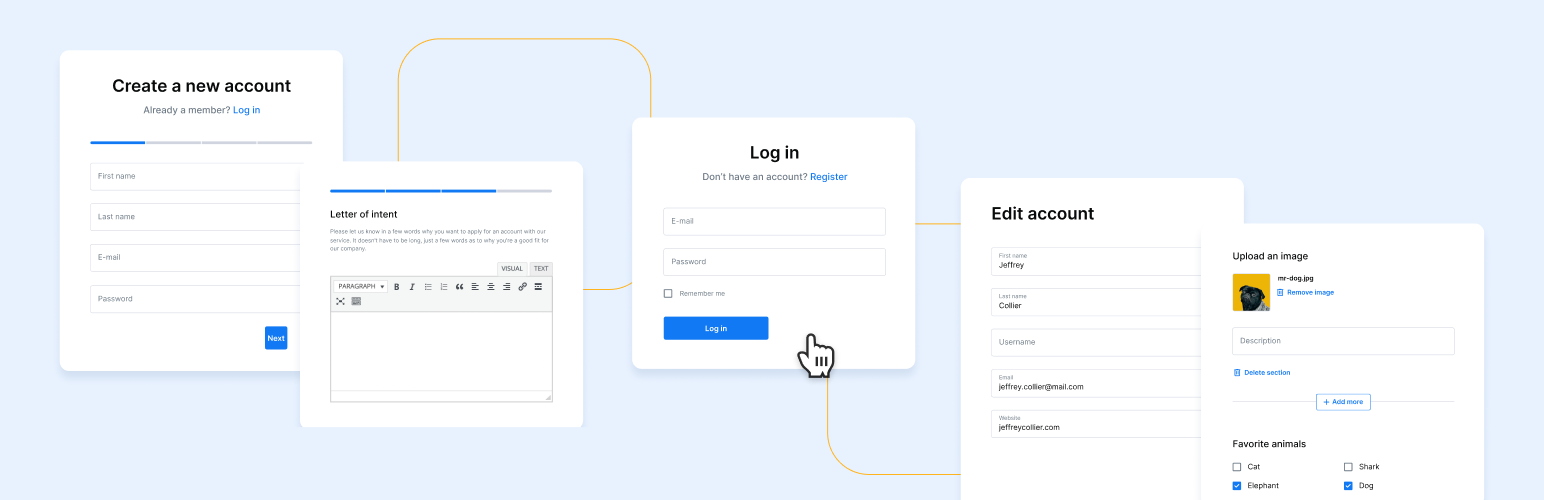
Powerful user profile plugin to create front-end user registration forms, login & user profile forms. Incl...
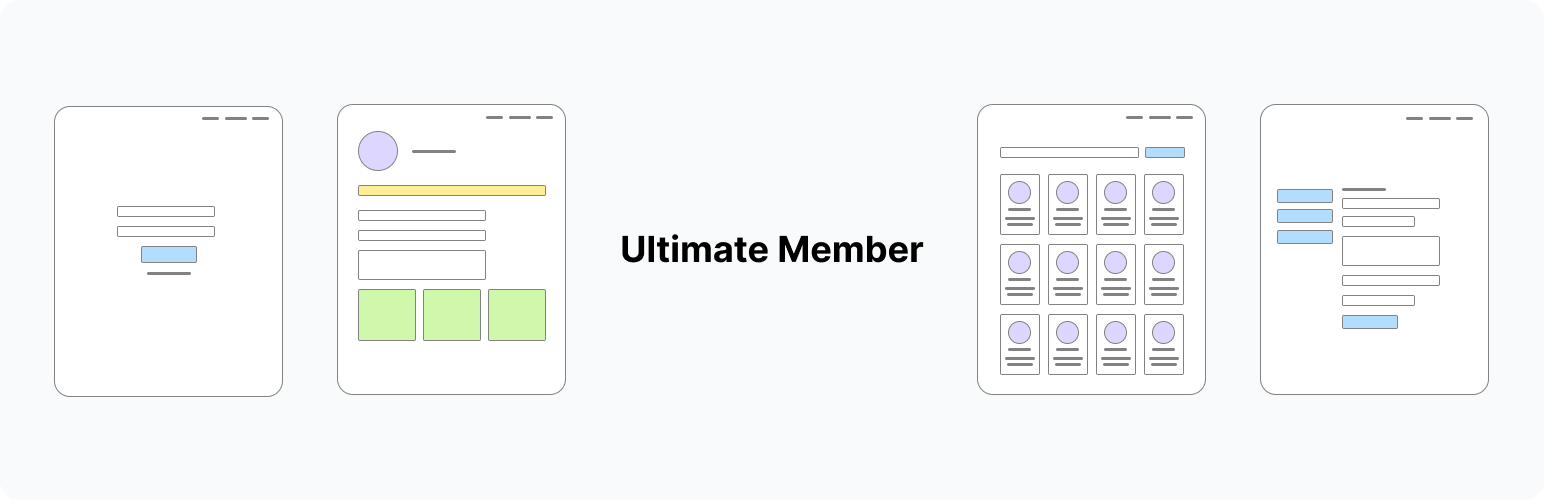
Membership & community plugin with user profiles, registration & login, member directories, content re...

Simple plugin to scan "uploads" directory and bring those files into Media Library.

Create modern careers page, list jobs, and manage applications directly from your WordPress dashboard.