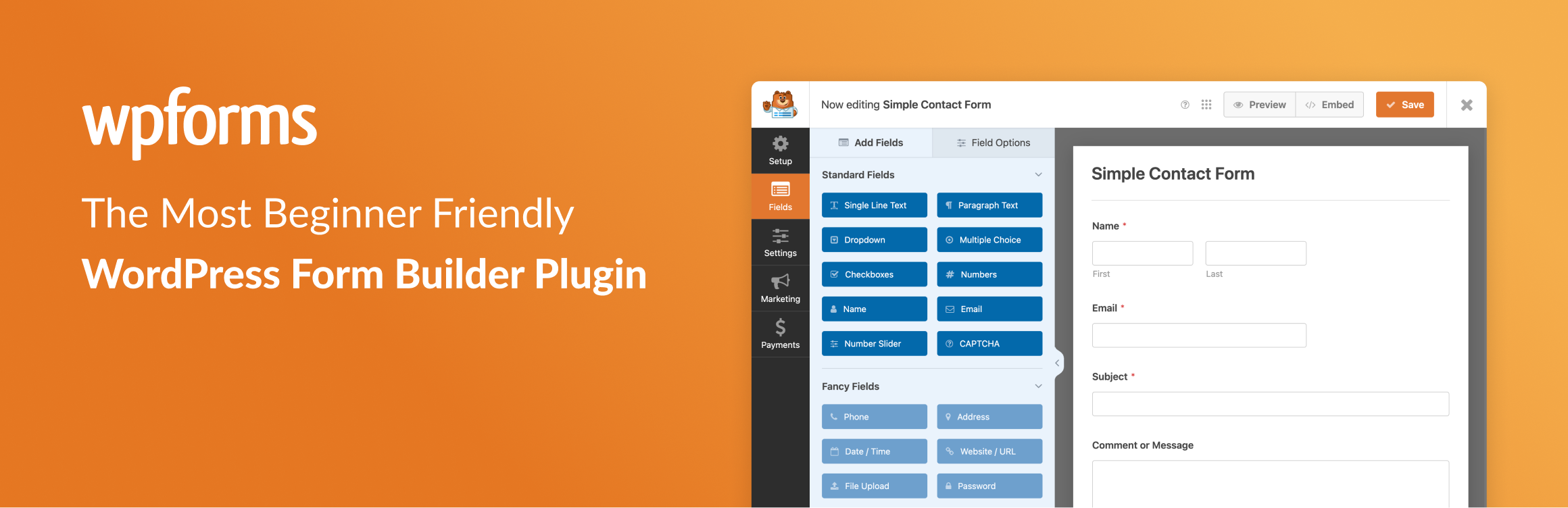
WPForms
98The best WordPress contact form plugin. Drag & Drop form builder to create beautiful contact forms, paymen...
Free
5M+ installs 4.8★ (14,369)
Send your Contact Forms 7 submissions directly to your Google Sheets spreadsheet.

Integration with Google Sheets for Contact Form 7 is a WordPress plugin that connects Contact Form 7 submissions directly to Google Sheets. It allows you to send form data to a specified Google Sheet, enabling easy data management and analysis.
To use the plugin, you need to create application credentials for Google Sheets, configure your contact form with the appropriate Sheet ID and Tab ID, and share the sheet with the plugin's Client Email. The plugin automatically generates headers in the Google Sheet based on the form submissions and allows for capturing additional metadata.
Best for: This plugin is suitable for users who need to collect and manage form submissions in Google Sheets.
What it does well
Where it falls short
Integration with Google Sheets for Contact Form 7 provides a straightforward solution for linking form submissions to spreadsheets, though it requires some initial configuration.
Alex Agranov's own description of Integration with Google Sheets for Contact Form 7, lightly tidied.
This plugin provides integration between Contact Form 7 and Google Sheets.
It adds new processor to Contact Form 7 that enables sending of submitted forms to Google Sheets.
After installing the plugin you must go to it’s Settings screen and create application credentials needed to establish connection with Google Sheets. All instructions are provided in the Settings screen.
After successfully creating application credentials and uploading them (i.e. completing steps 1 and 2), you will see Client ID and Client Email that represent your instance of “Google Sheets for Contact Form 7” plugin. You will need to share your sheets with Client Email (as Editor role) to grant “Google Sheets for Contact Form 7” plugin permissions to edit them.
After successfully connecting the plugin to Google Sheets, do the following to configure your Contact Form 7 to send data to Google Sheets on form submission.
In Google Sheets
Determine Sheet ID and Tab ID from the sheet’s URL that looks as follows: https://docs.google.com/spreadsheets/d/sheet-id/edit#gid=tab-id
For example, for URL https://docs.google.com/spreadsheets/d/142XLjqRCpr7iWldfARhSS_GiFoy4l5RqZfSD6RHXM64/edit#gid=0 Sheet ID is “142XLjqRCpr7iWldfARhSS_GiFoy4l5RqZfSD6RHXM64” and Tab ID is “0”
Enter “datetime” in the the first column if you want to capture time and date of submission
In Contact Form 7
The plugin verifies spreadsheet header on each new form submission and adds new fields to it if needed. Note that it never deletes fields from the header – as this would also delete some submission data – though you can do it manually. You may also manually reorder columns as you wish.
In addition to the datetime and regular form fields, you may also capture Contact Form 7 special mail-tags. In order to do so, add manually corresponding headers to your spreadsheet. Remove square brackets and first underscore from the tag name, and replace remaining underscores with dashes. For example, add remote-ip header to capture [_remote_ip] mail-tag.
If you use Contact Form 7 Database Addon – CFDB7 to save your submissions, you will also be able to resend already submitted forms to Google Sheets. This may be useful if something went wrong during initial form submission and/or someone deleted data in Google Sheets by mistake. In order to do so, in CFDB7 plugin, choose your form, open specific submission and click Send to Google Sheets button.
Other plugins for building forms.
The best WordPress contact form plugin. Drag & Drop form builder to create beautiful contact forms, paymen...

The best anti-spam protection to block spam comments and spam in a contact form. The most trusted antispam sol...
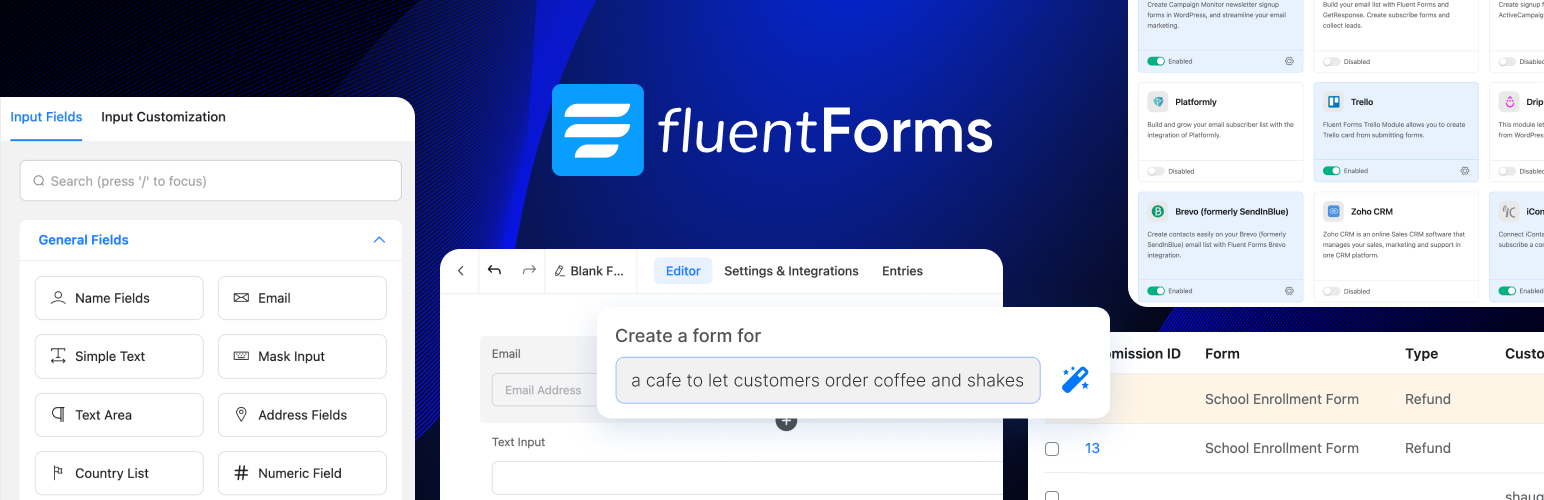
Get a fast contact form plugin. Create advanced forms using drag and drop form builder with all smart features...
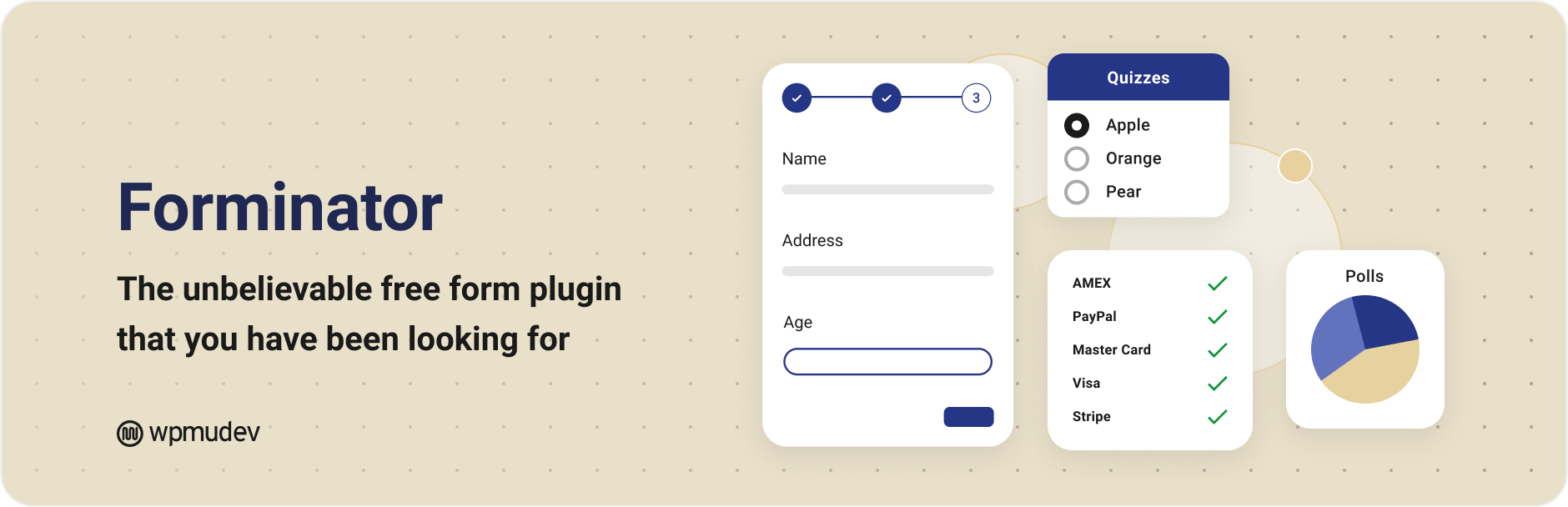
Best WordPress form builder plugin. Create contact forms, payment forms & order forms with 1000+ integrati...

Save and manage Contact Form 7 messages. Never lose important data. It is a lightweight contact form 7 databas...
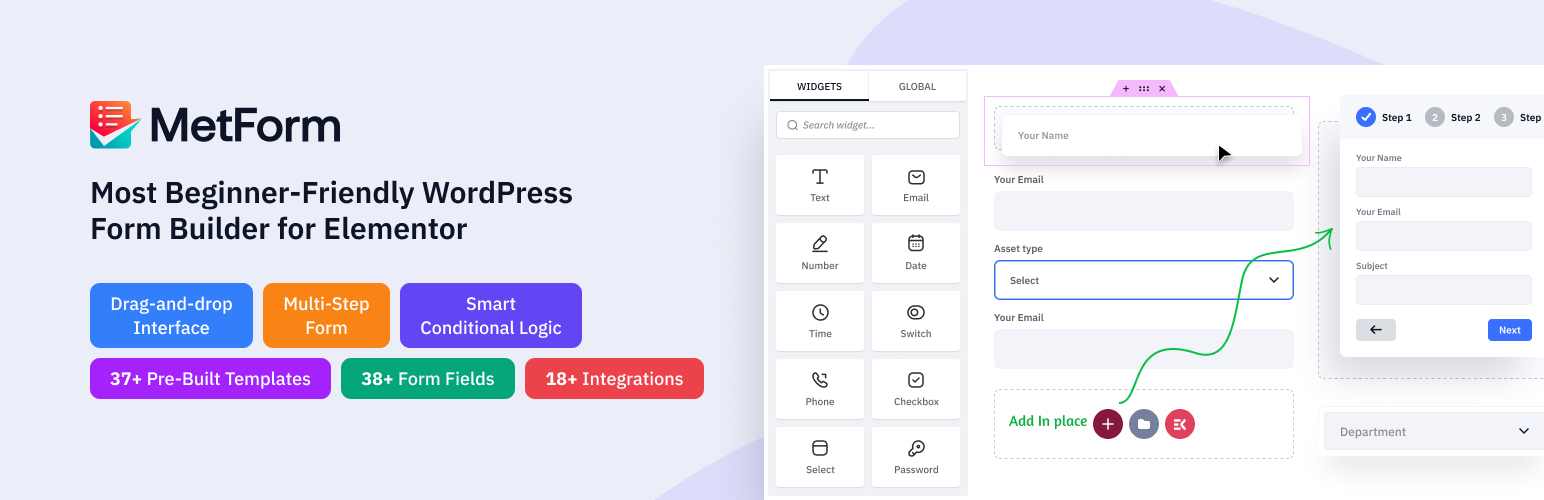
Elementor forms builder to create WordPress forms like contact form, booking form, feedback form, survey form,...