Custom Menu Wizard Widget
Show branches or levels of your menu in a widget, or in content using a shortcode, with full customisation.
The facts
- Rating
- 4.7★ from 49
- Active installs
- 2k+
- Price
- Free
- Last updated
- 2 Apr 2018
- Added
- Mar 2013
- Requires WP
- 3.9
- Tested up to
- WP 4.9.31
- Requires PHP
- 5.4
- Downloads
- 264,312
Our analysis
AI-assistedCustom Menu Wizard Widget is a WordPress plugin that enhances the standard Custom Menu widget by offering detailed control over menu display options. You can display entire menus, specific branches, or selected items, and it allows for various configurations like hierarchical or flat output. This plugin is suitable for users who need advanced menu management without frontend styling capabilities.
The plugin includes features such as shortcode support, custom classes for menu items, and the ability to conditionally display menu items based on the current page. However, users should note that the appearance of the menu will depend entirely on their theme and custom styling.
Best for: This plugin suits users who require advanced menu configurations in WordPress.
What it does well
- ✓Provides detailed control over menu display options
- ✓Allows for conditional display of menu items
- ✓Includes shortcode for embedding widget output in content
- ✓Supports hierarchical and flat menu output
- ✓Offers interactive assistance for widget settings
Where it falls short
- •No frontend styling options provided
- •Documentation may be truncated or unclear
Verdict
Custom Menu Wizard Widget offers extensive options for managing menus but lacks styling features, making it best for users comfortable with customisation.
From the developer
wizzud's own description of Custom Menu Wizard Widget, lightly tidied.
This plugin is a boosted version of the WordPress “Custom Menu” widget.
It provides full control over most of the parameters available when calling WP’s wp_nav_menu() function, as well as providing pre-filtering of the menu items in order to be able to select a specific portion of the custom menu. It also automatically adds a couple of custom classes. And there’s a shortcode that enables you to include the widget’s output in your content.
Important! This plugin provides nothing – zip, zilch, nada, bupkis – in the way of frontend styling! The
appearance of any final output is down to you and your theme, so if you’re just looking for something to re-style
a menu then I’m sorry but this plugin won’t do that!
Features include:
- Display an entire menu, just a branch of it, just certain level(s) of it, or even just specific items from it!
- Select a branch based on a specific menu item, or the current menu item (currently displayed page)
- Specify a relative or absolute level to start at, and the number of levels to output
- Include ancestor item(s) in the output, with or without siblings
- Exclude certain menu items, or levels of items
- Make the output conditional upon the current menu item being found in different stages of the filter selection process
- Automatically add cmw-level-N and cmw-has-submenu classes to output menu items
- Allow the widget title to be entered but not output, or to be set from the current menu item or selected branch item
- Select hierarchical or flat output, both options still abiding by the specified number of levels to output
- Specify custom class(es) for the widget block, the menu container, and the menu itself
- Modify the link’s output with additional HTML around the link’s text and/or the link element itself
- Use Ordered Lists (OL) for the top and/or sub levels instead of Unordered Lists (UL)
- Shortcode,
[cmwizard], available to run the widget from within content - Shortcode can reference a widget instance, making maintenance of multiple occurences of the same (or very similar) shortcode a lot easier
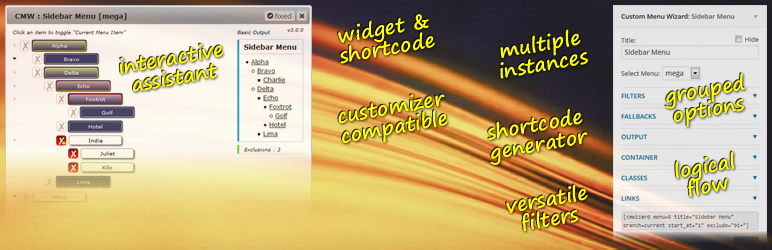
- Interactive “assist” to help with the widget settings and/or shortcode definition
- Utility to find posts containing this plugin’s shortcode
- Specify an alternative configuration to use under certain conditions (dual-scenario capability)
Current documentation for the Widget Options can be found
under Other Notes.
The associated Shortcode Attributes are documented
under Installation.
You may find that the documentation here is truncated, so I have reproduced the readme.txt
as cmw-doc.html.
This file is also now included in the plugin download, and is linked to from the Custom Menu Wizard entry
on the admin Plugins page.
My apologies if this causes – or has caused – any confusion.
Please, do not be put off by the number of options available! I suspect (and I admit that I’m guessing!) that for the majority of users
there are probably a couple of very common scenarios:
-
Show an entire menu…
- Drag a new Custom Menu Wizard widget into the sidebar, and give it a title (if you want one)
- Select the menu you wish to use (if it’s not already selected)
- Save the widget!
-
Equivalent shortcode resembles…
[cmwizard menu=N title=”Your Title”/]
-
Show the current menu item, plus any descendants…
- Drag a new Custom Menu Wizard widget into the sidebar, and give it a title (if you want one)
- Select the menu you wish to use (if it’s not already selected)
- Open the FILTERS section :
- under Primary Filter, click on the Branch radio
- Save the widget!
-
Equivalent shortcode resembles…
[cmwizard menu=N title=”Your Title” branch=current/]
-
Show just the descendants of the current menu item (if there are any)…
- Drag a new Custom Menu Wizard widget into the sidebar, and give it a title (if you want one)
- Select the menu you wish to use (if it’s not already selected)
- Open the FILTERS section :
- under Primary Filter, click on the Branch radio
- under Secondary Filter, set Starting at to “+1 (children)”
- Save the widget!
-
Equivalent shortcode resembles…
[cmwizard menu=N title=”Your Title” branch=current start_at=”+1″/]
-
Always show the top level items, but when the menu contains the current item then also show that current item, with its ancestors and immediate children…
- Drag a new Custom Menu Wizard widget into the sidebar, and give it a title (if you want one)
- Select the menu you wish to use (if it’s not already selected)
- Open the FILTERS section :
- under Primary Filter, click on the Branch radio
- under Secondary Filter, set Depth to “2 levels” (ie. current item plus immediate children)
- under Inclusions, set Branch Ancestors to “to level 1 (root)”, and set Level to “1”
- Open the ALTERNATIVE section :
- set On condition to “Current Item is NOT in…” and “Menu” (the 2nd dropdown)
- in the Then switch settings to textarea, type in “[cmwizard depth=1/]” (without the quotes!)
- Save the widget!
-
Equivalent shortcode resembles…
[cmwizard menu=N branch=current depth=2 ancestors=1 include_level=”1″ alternative=”no-current,menu”]depth=1[/cmwizard]
If you like this widget (or if you don’t?), please consider taking a moment or two to give it a
Review : it helps others, and gives me valuable feedback.
Documentation for version 2 of the widget
can be found here
or here.
Widget options
There are quite a few options, which makes the widget settings box very long. I have therefore grouped most of the options into
collapsible logical sections (with remembered state once saved).
The associated SHORTCODE ATTRIBUTES are documented
under Installation.
Always Visible
-
Title (textbox)
Set the title for your widget.
-
Hide (checkbox)
Prevents the entered
Titlebeing displayed in the front-end widget output.In the Widgets admin page, I find it useful to still be able to see the
Titlein the sidebar when the widget is closed, but I
don’t necessarily want thatTitleto actually be output when the widget is displayed at the front-end. Hence this checkbox. -
Select Menu (select)
Choose the appropriate menu from the dropdown list of Custom Menus currently defined in your WordPress application. The
first one available (alphabetically) is already selected for you by default.Filters Section
Filters are applied in the order they are presented.
Primary Filter