
Backup, restore or migrate your WordPress website to another host or domain. Schedule backups or run manually....
Free
3M+ installs 4.8★ (8,631)
Backup your entire WordPress site and its database into a zip file on a schedule. Remote storage options include FTP, SFTP and FTPS.

CYAN Backup is a WordPress plugin that allows you to back up your entire site and its database into a zip file on a scheduled basis. You can configure the backup frequency to be hourly, daily, weekly, or monthly, with specific intervals for each option. The plugin supports remote storage options such as FTP, SFTP, and FTPS.
The plugin is suitable for users who need a straightforward solution for backing up their WordPress sites regularly. It includes features to exclude specific directories from backups and allows you to manage old backups by deleting them as needed.
Best for: This plugin is best for WordPress users looking for a simple and effective backup solution.
What it does well
Where it falls short
CYAN Backup offers essential backup features with scheduling and remote storage options. It may suit users who want a basic, free backup tool without extensive customisation needs.
Greg Ross's own description of CYAN Backup, lightly tidied.
Backup your entire WordPress site and its database into a zip file on a schedule. Remote storage options include FTP, SFTP and FTPS.
CYAN Backup is a fork of the great Total Backup by wokamoto.
Currently support schedules are hourly, daily, weekly and monthly with intervals for each (for example you could select a schedule of every 4 hours or every 6 weeks, etc.).
PHP5 Required
CYAN Backup is fully ready to be translated in to any supported languages, if you have translated into your language, please let me know.
Configure the archive path which specifies the directory to store your backups to. This must be writeable by the web server but should not be accessible via the web as a hacker could guess the filename and get a copy copy of your database. If you must place the backups in a directory inside of the WordPress directory (or web server root) make sure to block extenal access via .htaccess or other means. The default path is the directory for the temp files returned by sys_get_temp_dir().
Configure the excluded paths which specify the directories you don’t want to back up. The default excluded directories are:
If you have configured your archive path below the main WordPress directory you MUST add it to the list of excluded directories as well.
Activate and configure the scheduler if you want to backup on a regular basis. Schedule options include:
You can also enable auto pruning of old backups by setting the number of backup files you want to keep.
Backing up your site can take a while, you will want to ensure your PHP and webserver are configured to allow for the backup script to run long enough to complete the backup..
Once a backup is complete you can download the backup files from the links in Backup page. You can delete old backup files by checking one or more boxes in the backup list and then clicking the Delete button.
Other plugins for backups.
Backup, restore or migrate your WordPress website to another host or domain. Schedule backups or run manually....
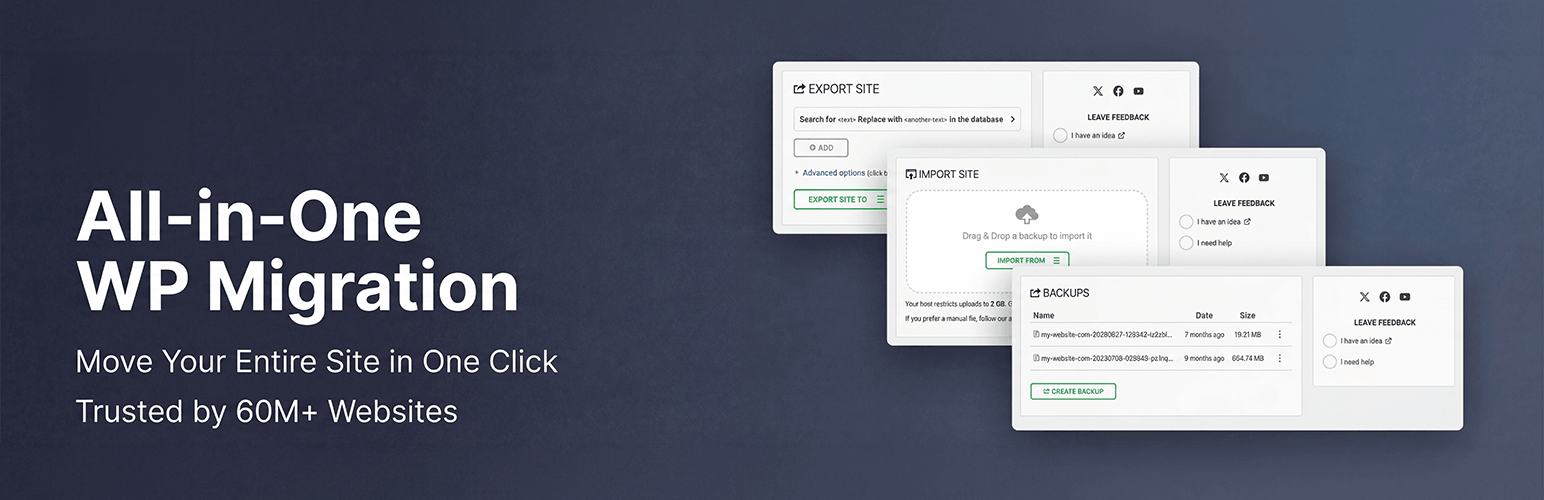
Trusted by 60M+ sites: The gold standard for WordPress migration and backup. Migrate, backup, and restore your...
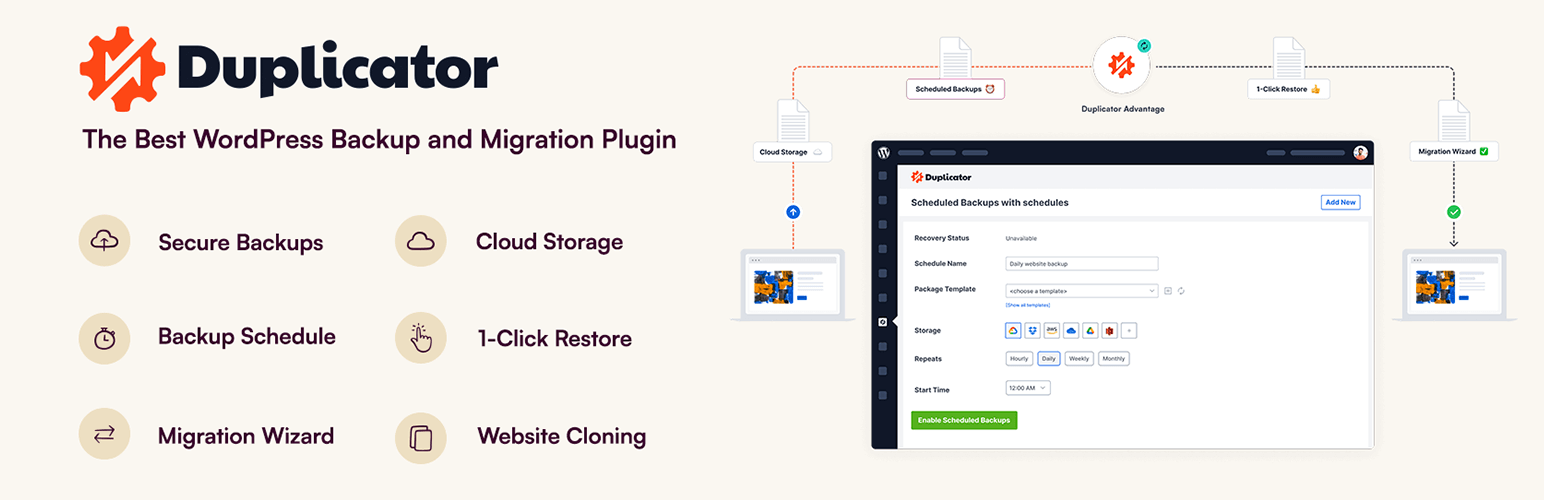
The best WordPress backup and migration plugin. Quickly and easily backup ,migrate, copy, move, or clone your...

All-in-one WordPress backup, migration and staging plugin — schedule automatic backups, restore in one click,...

Disable Gutenberg Block Editor and restore the Classic Editor and original Edit Post screen (TinyMCE, meta box...

WordPress backup plugin: backups, restore & migration in minutes. Clone or duplicate your site, test updat...