
GetGenie
91AI powered SEO assistant & content writer with 40+ templates, chatbot, NLP keyword research, AEO, GEO, SEO...
Free
80k+ installs 4.8★ (118)
Show your posts with thumbnails in flexible, responsive layouts. Works as a sidebar widget or a block in the editor.

Flex Posts is a WordPress plugin that provides a responsive widget for displaying posts in various layouts. It is particularly useful for news sites that require the display of multiple posts on a single page. The widget adapts to the width of its container, allowing for vertical or multi-column layouts depending on the available space.
You can customise the widget settings extensively, including layout selection, title options, and post filtering by category or tags. Additionally, it includes a Gutenberg block for easy integration into post or page content, making it suitable for users who want to enhance their site's post display capabilities.
Best for: This plugin suits news sites or blogs that need to display multiple posts efficiently.
What it does well
Where it falls short
Flex Posts offers a flexible solution for displaying posts in various layouts, making it a good choice for content-rich sites. However, details on user experience and specific feature performance are not provided.
Tajam's own description of Flex Posts, lightly tidied.
Flex Posts is a widget to display posts in various different layouts. It is useful for a news site where you need to display a lot of posts in a page.
The widget is responsive so you can place it in any widget area. The widget content will adapt based on the width of its container. In a narrow area like standard sidebar, posts will be displayed vertically, but in a wider area, posts will be displayed in 2 or 3 columns depends on the container’s width.
featured, -video will show posts tagged with featured but not video.Read More.Since version 1.1.0, Flex Posts also includes a gutenberg block. You can add the widget directly into the post/page content with the WP 5.0 block editor.
This plugin has been tested and works with at least PHP 5.3 installed in your environment. But we strongly recommend you to use the latest PHP version, as using older versions may expose you to security vulnerabilities.
Other plugins for bookstores and publishers.
AI powered SEO assistant & content writer with 40+ templates, chatbot, NLP keyword research, AEO, GEO, SEO...
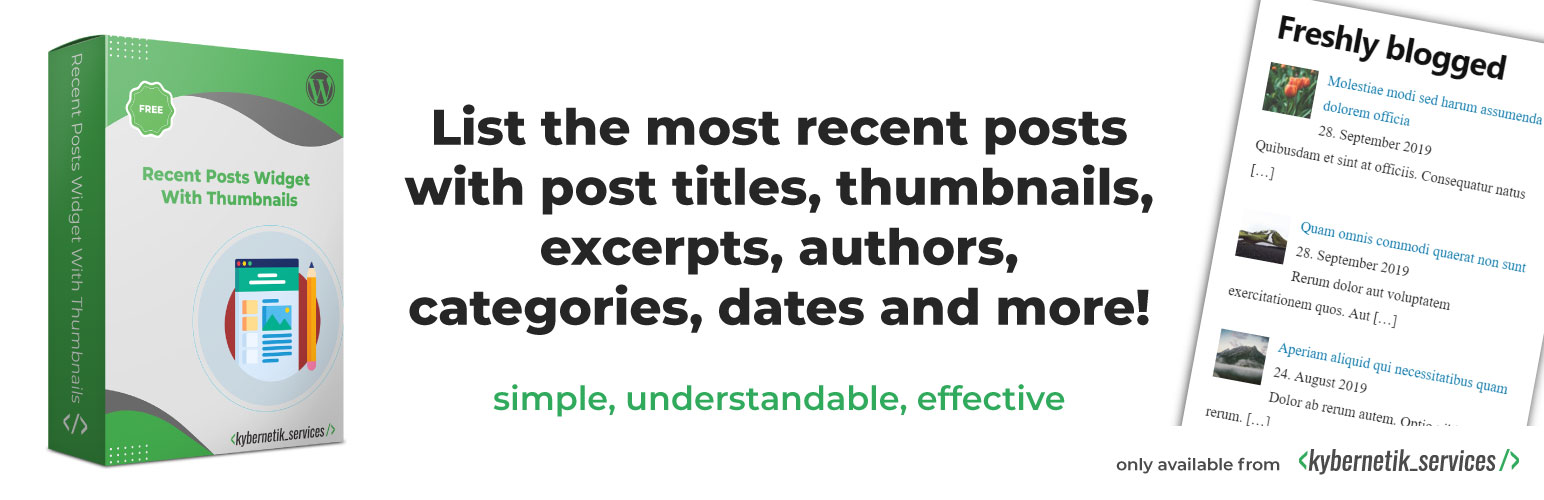
List the most recent posts with post titles, thumbnails, excerpts, authors, categories, dates and more!

Very customizable plugin to list posts by category (or tag, author and more) in a post, page or widget. Uses t...

A Customizable Testimonial plugin to Automate Collecting, Filtering, and Publishing Customer Reviews. Testimon...
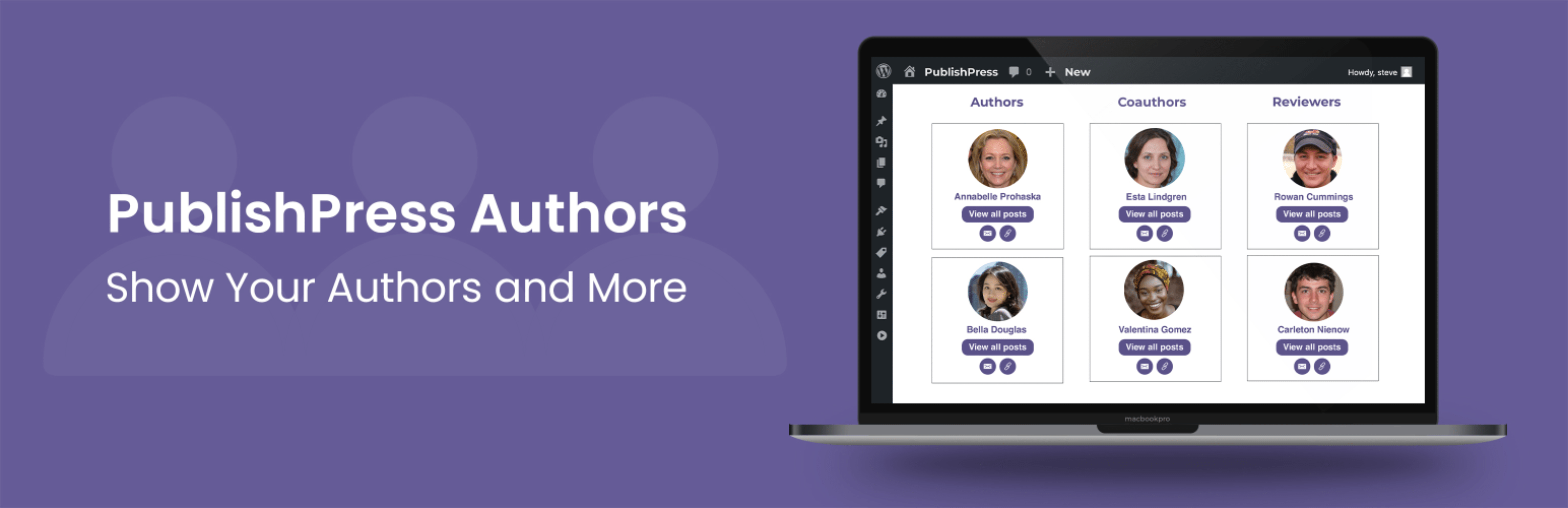
PublishPress Authors is the best plugin for adding authors, co-authors, multiple authors and guest authors to...

Import your demo content, widgets and theme settings with one click. Theme authors! Enable simple theme demo i...