FlippingBook
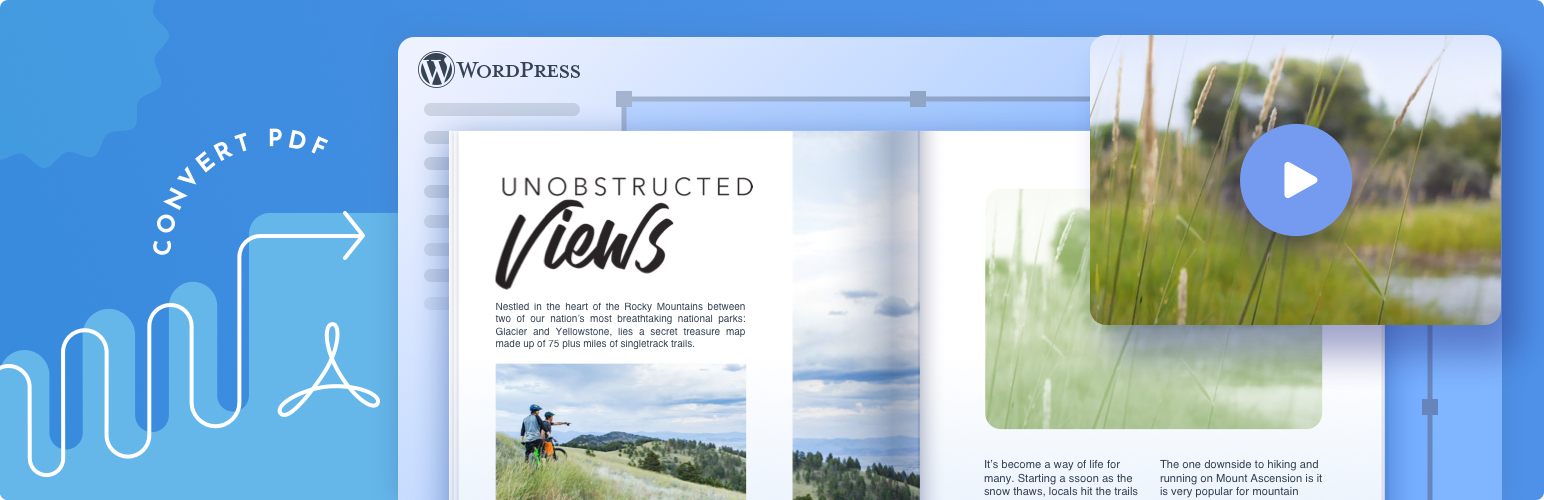
Embed PDFs into your WordPress site as interactive flipbooks. Attractive and trackable, flipbooks are a great alternative to static PDFs.
The facts
- Rating
- 4★ from 4
- Active installs
- 2k+
- Price
- Free
- Last updated
- 1 Apr 2026
- Added
- Jan 2016
- Requires WP
- 3.2
- Tested up to
- WP 6.9.7
- Requires PHP
- 5.5.0
- Downloads
- 65,694
Our analysis
AI-assistedFlippingBook is a WordPress plugin that allows you to embed interactive HTML5 flipbooks created with FlippingBook Online or FlippingBook Publisher directly into your WordPress site. It transforms standard PDF documents into engaging flipbooks, enhancing user interaction on your website.
The plugin is designed for users of FlippingBook, enabling easy integration by simply pasting a sharing link into a post. It also offers customization options for the embed settings, allowing for responsive designs that fit the layout of your site.
Best for: This plugin suits users who want to enhance their WordPress site with interactive flipbooks from FlippingBook.
What it does well
- ✓Transforms PDFs into interactive HTML5 flipbooks
- ✓Easy embedding with just a sharing link
- ✓Customization options for responsive design
- ✓Admin page for adjusting oEmbed settings
- ✓Supports custom domain names for FlippingBook Online users
Where it falls short
- •Requires a FlippingBook account to create flipbooks
- •Limited information on additional features
Verdict
FlippingBook provides a straightforward solution for embedding flipbooks in WordPress, particularly for those already using FlippingBook services. However, it requires an account with FlippingBook to create content.
From the developer
FlippingBook's own description of FlippingBook, lightly tidied.
FlippingBook Plugin is a flipbook PDF viewer solution. It allows you to embed flipbooks made via FlippingBook Online or FlippingBook Publisher into WordPress in one step, without any extra fuss.
You don’t have to be make do with embedding PDFs anymore—turn them into responsive interactive HTML5 flipbooks instead and then use the plugin to embed them into a webpage in a click. Your flipbook magazine or brochure will become a seamless feature of your website, ready to engage.
About FlippingBook
FlippingBook helps create all kinds of digital documents for more than 50,000 customers around the world. If you’re new to the format, check out our PDF flipbook examples and get inspired to create your own 3D flipbook.
How to embed a flipbook into WordPress
If you’re a FlippingBook user:
1. Copy the link to the PDF flipbook you want to embed.
2. Go to the admin panel of your WordPress website. Find FlippingBook Plugin through the Plugin menu and activate it.
3. Now you can simply paste your flipbook sharing link into the body of your post, and the link will be converted into a neat oEmbed automatically.
How to embed a PDF into WordPress
If you’ve never used FlippingBook before:
1. Sign up for FlippingBook and create your first flipbook*—just upload your PDF and customize it.
2. Copy the sharing link to your flipbook when it’s ready.
3. Go to the admin panel of your WordPress website. Find FlippingBook Plugin through the Plugin menu and activate it.
4. Now you can simply paste your flipbook sharing link into the body of your post, and the link will be converted into a neat oEmbed automatically.
(*) You can either sign up for our paid subscription straight away or go for the trial to try out all the features first. Don’t forget to choose the plan that works best for you once your trial is over—otherwise your flipbooks will go offline.
Features
Admin page
You can tweak the settings of your oEmbed via the admin page of your WordPress website.
-
Make your flipbook responsive and customize the oEmbed ratio
These two settings allow you to make the FlippingBook oEmbeds responsive.
Instead of having a default size, your embeds will fill the container by width and retain the ratio specified in the oEmbed ratio field.
The Make oEmbed responsive setting will apply to all new oEmbeds. You’ll need to clear the oEmbed cache if you’d like to apply the setting to your existing FlippingBook oEmbeds. -
Set a custom domain name
If you are a FlippingBook Online user and you have your Custom Domain set up, you should enter the domain name in the relevant field to enable the oEmbed and the shortcode support for your custom domain. You can get more information about custom domains in this article.
Shortcode
With a shortcode, you can customize your WordPress flip book even further.
To do so, choose Embed → Embed into WordPress in your FlippingBook Online account and Publication → Get Embed Code → WordPress in FlippingBook Publisher if you host on the cloud. Customize the look and the size of your oEmbed there and then just copy the embed code.