WP-Optimize
95Get caching and more with this powerful cache plugin. Cache, optimize images, clean your database and minify f...
Free
1M+ installs 4.8★ (2,606)
Select different Themes for one or more WordPress Pages, Posts or other non-Admin pages. Or Site Home.
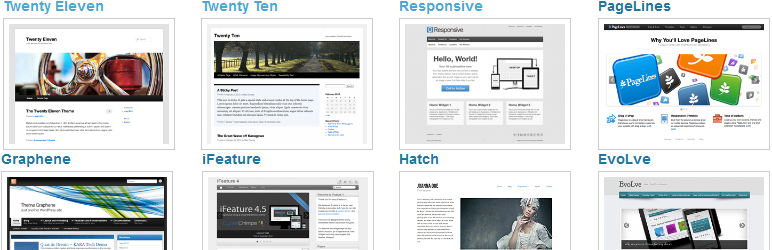
Multiple Themes is a WordPress plugin that allows you to select different themes for specific parts of your website. You can set themes based on criteria such as URL, query keywords, or for all pages and posts. This flexibility is useful for users who want to tailor the appearance of their site for different visitors or sections without changing the active theme in the WordPress admin panel.
The plugin supports various selection methods, including sticky queries and wildcard prefixes. However, it is important to note that it may not work seamlessly with paid themes or certain caching plugins, which could require additional management when changing settings.
Best for: This plugin suits WordPress users who want to display different themes across their site based on specific conditions.
What it does well
Where it falls short
Multiple Themes offers a flexible solution for managing theme display, but users should be cautious about compatibility with paid themes and caching issues.
miabou's own description of Multiple Themes, lightly tidied.
Settings provide many different ways to Select which Theme should appear where on your WordPress web site:
None of the Themes in the WordPress Theme Directory alter the appearance of the WordPress Admin panels. As a result, this plugin does not allow Theme Selection entries to specify URLs for WordPress Admin panels.
Use with Paid Themes: On-going full scale testing of Themes by this plugin’s author is only possible if the Theme is found in the WordPress Theme Directory. Although (Version 5 of) this plugin should now work with all Themes, any problems encountered while using Paid Themes will be difficult to diagnose. As described in the FAQ tab, a WordPress Network (Multisite) is an alternative to this plugin, as a way to create a single web site with more than one Theme.
A similar situation exists with Paid Plugins.
Use with Plugins that Cache: You may find that you have to flush the Cache whenever you change Settings in the jonradio Multiple Themes plugin. Some Caching plugins only cache for visitors who are not logged in as users, so be sure to log out before testing the results of your jonradio Multiple Themes settings.
Changing Theme Options (Widgets, Sidebars, Menus, Templates, Background, Header, etc.)?: After installing and activating the plugin, see the plugin’s Settings page and click on the Theme Options tab for important information on changing Options for Themes other than the Active Theme.
How it Works: The plugin does not change the Active Theme defined to WordPress in the Appearances-Themes Admin panel. Instead, it dynamically (and selectively) overrides that setting. Which means that simply deactivating (or deleting) this plugin will restore the way that Themes were displayed prior to installing this plugin. However, in some situations, it is possible to inadvertently alter Theme Options for the Active Theme when using either of the Methods described on the plugin’s Setting page Theme Options tab.
Adoption Notice
Special thanks to Jon ‘jonradio’ Pearkins for creating the plugin and making adoption possible.
Other plugins for making sites fast.
Get caching and more with this powerful cache plugin. Cache, optimize images, clean your database and minify f...

All-in-one unbeatable acceleration & PageSpeed improvement: caching, image/CSS/JS optimization...

Comprehensive image optimization with WebP, AVIF, Lazy Load, and more. Optimize images automatically for Faste...

Easy to use Under Construction Page & Coming Soon Page. Enable Under Construction Mode in seconds & sh...

Compress and optimize images, enable lazy load, serve WebP & AVIF, and speed up your site with a global im...

Speed up your website by using our WebP & AVIF Converter. Optimize images and serve WebP and AVIF images i...