Lifetime SSL solution - Free SSL certificate & HTTPS redirect, fix insecure site / SSL errors, Security he...
Free
50k+ installs 4.9★ (1,143)
Visibility Control for WooCommerce helps you hide or show messages, menu and content for specific criterion anywhere on your WordPress page.

Visibility Control for WooCommerce is a WordPress plugin designed to manage the visibility of messages, menus, and content based on specific user criteria. It allows you to show or hide HTML elements depending on whether a user has purchased a particular WooCommerce product, or whether they are logged in or out.
To use the plugin, you apply specific CSS classes to your elements. For example, you can make an element visible to users who have purchased a certain product by adding a class like 'visible_to_product_123'. This plugin is suitable for WooCommerce store owners who want to tailor the user experience based on purchase history or user status.
Best for: This plugin suits WooCommerce store owners looking to customise user experiences based on purchase history or login status.
What it does well
Where it falls short
Visibility Control for WooCommerce offers a straightforward way to manage content visibility, though it may require some technical knowledge to implement effectively.
Pankaj Agrawal's own description of Visibility Control for WooCommerce, lightly tidied.
Visibility Control for WooCommerce helps you hide or show messages, menu and content for specific criterion anywhere on your WordPress page.
You can show/hide HTML elements, menus, and other details based on:
1. User’s purchase of a particular WooCommerce Product or Variation, Or
2. User is Logged In or Logged Out.
You simply need to add a CSS class to your element div or span. As explained here:
Example:
If Product or Variation ID is 123
For user’s role:
* To show the element/menu item to a user will role administrator, add this CSS class: visible_to_role_administrator OR hidden_to_role_administrator
* Note: To show an element to multiple specific roles only, you need add the element multiple times, one for each role. To hide an element/menu from specific multiple roles only you can add the element once add multiple classes to the same element.
Mechanism of Functioning
Future Development
Depending on the interest in this feature, we will decide on adding a setting, shortcode and/or a Gutenberg Block option to achieve this feature.
Other Visibility Control Plugins:
Other plugins for teaching online.
Lifetime SSL solution - Free SSL certificate & HTTPS redirect, fix insecure site / SSL errors, Security he...

Enable SSL & HTTPS redirect with 1 click! Add SSL certificate & WP Force SSL to redirect site from HTT...
The AI + Automation plugin for WordPress. Automate workflows across all your plugins and apps, add an AI agent...
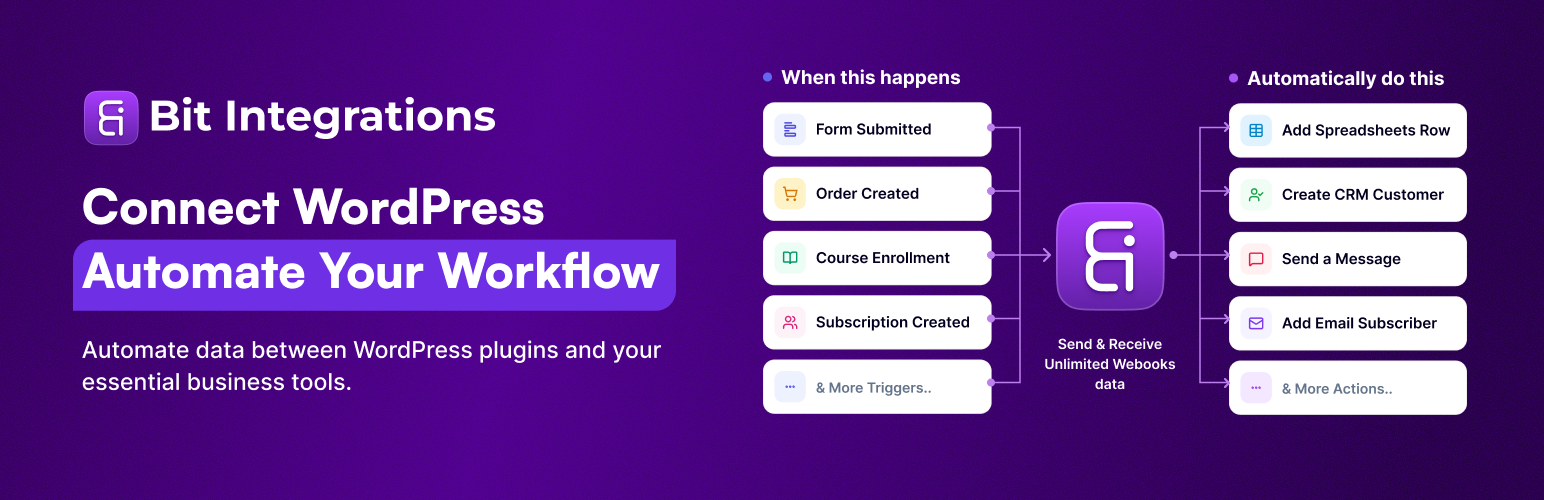
Contact Form, Google Sheet, MailChimp, Brevo, Webhook, Zoho CRM Automation and Integration plugin that Connect...
Free SSL certificate for WordPress — install a Let's Encrypt SSL, force HTTPS, fix mixed content and redi...

Generate & install Free SSL Certificates for WordPress, HTTPS redirect, get PADLOCK in the browser, get au...