Make email delivery easy for WordPress. Connect with SMTP, Gmail, Outlook, SendGrid, Mailgun, SES, Zoho, + mor...
Free
4M+ installs 4.8★ (5,185)
Secure your Contact Form 7 emails with this free SMTP plugin. It configures wp_mail() and features OAuth2, custom templates, and automated reports.

SMTP for Contact Form 7 is a WordPress plugin designed to enhance email delivery for forms created with Contact Form 7. It allows you to send emails through an external SMTP server, which can help avoid issues with local mail server configurations and improve email acceptance by providers.
The plugin includes features such as OAuth2 authentication for secure connections to Gmail and Microsoft Office 365, custom email templates for different forms, and automated reports on sent and failed emails. It is suitable for users who need reliable email delivery from their WordPress forms.
Best for: This plugin suits WordPress users who rely on Contact Form 7 for form submissions and need reliable email delivery.
What it does well
Where it falls short
SMTP for Contact Form 7 provides useful features for improving email delivery from forms, making it a practical choice for users needing enhanced email functionality.
Erik's own description of SMTP for Contact Form 7, lightly tidied.
WordPress uses PHPMailer to send mail from with your local mail server, but it can happen that your mail were not accepted by mail providers…
This can happen for several reasons, sometimes because the mail server is not configured or sometimes because the records DKIM, DMARC and SPF of the domain been set up correctly and so on…
Anyway you can avoid any problems by using an external SMTP server and sending mail with it!
✅ OAuth2 Authentication: Securely connect to Gmail and Microsoft Office 365 without needing to store passwords in your database or enable “less secure apps”.
✅ Per-Form Custom Templates: Wrap CF7 emails with beautiful templates. You can now select a specific custom template for each form directly from the plugin settings!
✅ Global or CF7-Only Mode: Choose whether to override all WordPress emails with this SMTP configuration or limit it exclusively to Contact Form 7 submissions.
✅ Live testing: a module for testing e-mail settings with the Rest-Api (that avoid to reload the page for this kind of test). The entire output of the php mailer will be captured, which will be useful in case of configuration errors or to get the wrong parameter when is possible.
✅ Automated Reports: choose when and what email you want to receive the report and I will send you a beautifully formatted HTML summary of sent and failed emails. Includes log retention settings to keep your database clean.
✅ Advanced Headers & Security: Easily automatically set “Reply-To” headers, allow insecure options for self-signed certificates, and define custom “From Name” and “From Email” settings.
This plugin is ads free and I don’t want to try to sell you any pro version!
If you want to contribute, there are many ways to do so, from simple suggestions and bug reports to translating and contributing code.
See below how to do it!
SMTP stands for ‘Simple Mail Transfer Protocol’.
It is a connection-oriented, text-based network protocol of the Internet protocol family and as such is on the seventh layer of the ISO/OSI model, the application layer.
Like any other network protocol, it contains the rules for proper communication between networked computers.
SMTP is specifically responsible for sending and forwarding e-mails from a sender to a recipient.
Since its release in 1982 as the successor to the ‘Mail Box Protocol’ in Arpanet, SMTP has become the standard protocol for sending e-mails.
However, the SMTP procedure remains largely invisible to the normal consumer, as it is executed in the background by the e-mail programme used.
Only if the software, the webmail application on the browser or the mobile e-mail application does not automatically determine the SMTP protocol when creating an account, does it have to be set manually to ensure smooth e-mail traffic.
Google Gmail
To use Gmail with OAuth2, you need to create a Google Cloud Project:
1. Create Project: Go to Google Cloud Console and create a new project.
2. Enable Gmail API (Required): Go to APIs & Services > Library, search for Gmail API, and click Enable.
3. Configure Consent Screen: Go to OAuth consent screen and create an External app.
* Scopes: Click Add or Remove Scopes, search for the Gmail API, and check the boxes for .../auth/userinfo.email and .../auth/gmail.compose (or https://mail.google.com/).
* Publishing Status: Click Publish App to push it to production (otherwise, your connection token will expire every 7 days).
4. Create Credentials: Go to Credentials > Create Credentials > OAuth client ID.
* Application type: Web application.
* Authorized redirect URIs: Copy and paste the exact callback URL provided in your plugin settings.
5. Connect: Copy the generated Client ID and Client Secret into the plugin settings and click Connect.
6. Grant Permissions (Critical): During the Google login popup, click Advanced > Go to App if prompted with an “unverified app” warning. You must explicitly check the boxes that ask for permission to compose/send emails before clicking Continue.
Microsoft Office 365
1. Go to the Azure Portal (portal.azure.com).
2. Navigate to Azure Active Directory > App registrations > New registration.
3. Enter an application name and set the Redirect URI (Web) to the exact URL provided in the plugin settings.
4. Go to Certificates & secrets and create a new client secret. Copy the secret’s Value.
5. Go to API permissions > Add a permission > Microsoft Graph > Delegated permissions and add SMTP.Send and offline_access.
6. Copy the Application (client) ID and the Client Secret into the plugin settings.
7. Click Connect with OAuth2.
Would you like to find more presets (that you think are useful to other users)?
Open a request in the support form and provide the necessary connection data (auth, server address and port).
In the next cf7-smtp version you will find the required configuration among the presets.
It’s warmly advised to use OAuth2 for supported providers (Gmail, Office365) so no passwords are saved. If using basic SMTP authentication, it is highly recommended to store at least the password into wp-config.php as a constant.
And in addition, it’s also very easy! It needs only to add
define( 'CF7_SMTP_USER_PASS', 'mySecr3tp4ssWord' );
into your wp-config.php just before
Other plugins for email deliverability.
Make email delivery easy for WordPress. Connect with SMTP, Gmail, Outlook, SendGrid, Mailgun, SES, Zoho, + mor...

Free WP Mail SMTP plugin - fix WordPress email deliverability with Gmail, Amazon SES, SendGrid, Mailgun, Cloud...

Make SMTP email sending and delivery easy. Configure Gmail SMTP, Outlook, Brevo, SendGrid, Mailgun, SendLayer...

Send emails from your WordPress site using your preferred SMTP provider like Gmail, Outlook, AWS, Zoho, SMTP.c...
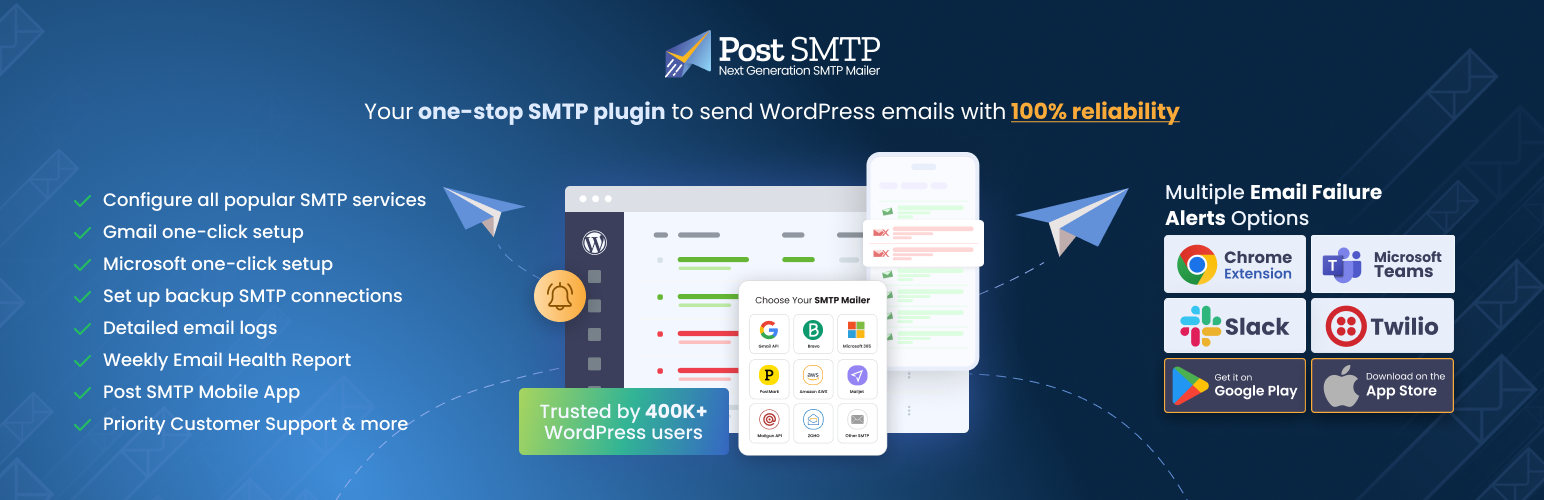
Improve WordPress email deliverability. Connect Gmail SMTP, Microsoft 365, Brevo, SendGrid, Mailgun, Zoho, Ama...

Check & Log email allows you to test if your website is correctly sending emails . Overriding of email hea...