
Members
94The best WordPress membership and user role editor plugin. User Roles & Capabilities editor helps you rest...
Free
300k+ installs 4.9★ (1,274)
Drag and Drop Table Builder Plugin. Build Responsive Tables Easily.
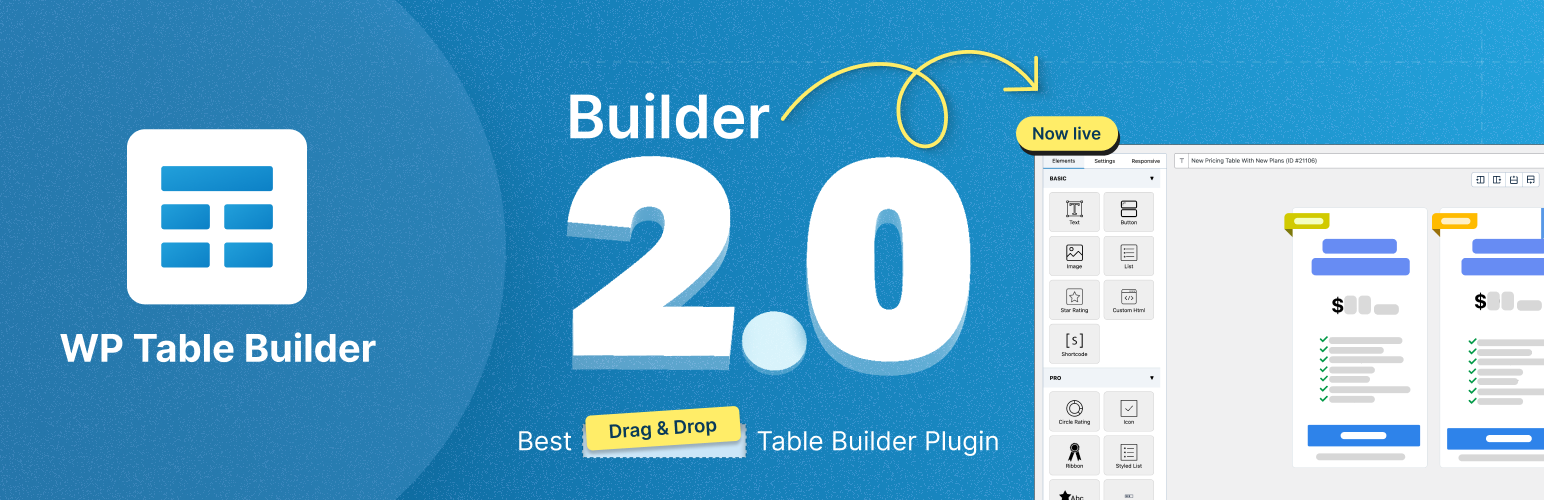
WP Table Builder is a drag and drop table builder plugin for WordPress that allows you to create responsive tables easily. You can use it to build various types of tables, including comparison and pricing tables, by dragging elements like text, images, and buttons into the table cells.
The plugin includes features for cell management, enabling you to add or remove rows and columns, merge or split cells, and customize each element. You can also import tables from CSV or XML files, including those from the TablePress plugin, and embed your tables in posts and pages using shortcodes.
Best for: This plugin is suitable for users who need to create and manage tables on their WordPress site.
What it does well
Where it falls short
WP Table Builder provides a straightforward solution for creating tables in WordPress, making it a practical choice for those needing basic table functionality.
WP Table Builder's own description of WP Table Builder, lightly tidied.
Plugin Demo | Documentation | Support | Tutorials | Get Pro
WP Table Builder is a drag and drop table builder plugin for WordPress. It’s insanely easy to create responsive tables with WP Table Builder.
WP Table Builder is perfect for creating comparison tables, pricing tables, list tables and many more.
The builder comes with 7 elements right now. You can add the following elements in a table:
All the elements come with customization options of their own.
We have a cell management mode which comes with options like Add New Row, Add New Column, Merge Cells, Split Cells and many more.
After you install the plugin, you will see a Table Builder menu. Go to Table Builder > Add New.
You will be able select column number and row number. Once you select that, click on Generate. The table will be generated.
You can then drag and drop elements from the left panel into the table cells. Once you are done adding and editing elements, click on Save to save the tables.
After the table is saved, you can embed it in post and pages by using a shortcode. Click on ‘Embed’ on the top to get the shortcode.
You can also get the shortcode from the ‘All Tables’ list under ‘Table Builder’ menu.
You can import tables from CSV or XML files. You can import both single and multiple CSV or XML files. Multiple files will have to be zipped.
You can also import tables from TablePress plugin.
Other plugins for moving data.
The best WordPress membership and user role editor plugin. User Roles & Capabilities editor helps you rest...

Manage all your WordPress updates, including individual updates, automatic updates, logs, and loads more. This...

Redux is a simple, truly extensible, and fully responsive options framework for WordPress themes and plugins....

🌠 Shorten, brand, and track any URL on your own domain. Keep your links — and your data — where they belong....

Export WooCommerce orders to Excel, CSV, XML, JSON, PDF and HTML. Best free order export plugin for WooCommerc...
Easily export or import your WordPress customizer settings!