Ad Inserter
94Manage Google AdSense ads, banners, ad rotation, sticky widgets, AMP ads, ads.txt, tracking, header and footer...
Free
300k+ installs 4.9★ (2,428)
A single block to display custom fields in the Block Editor. It supports ACF, MetaBox, WooCommerce, meta, rest field, shortcode and more.
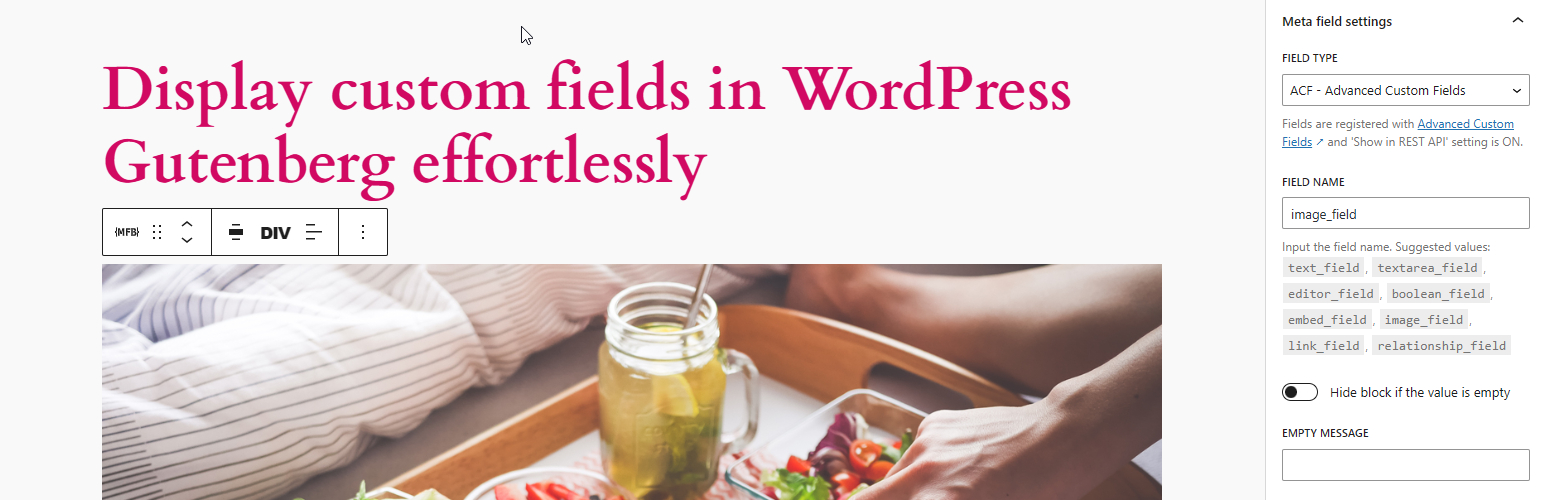
Meta Field Block is a WordPress plugin that allows you to display custom fields in the Block Editor without needing to code. It supports custom fields for posts, terms, and users, and can be used as a stand-alone block or nested within parent blocks like Query Loop or WooCommerce Product Collection.
The plugin retrieves field values using core API functions and supports various field types from Advanced Custom Fields and Meta Box. It also provides developer-friendly hook APIs for custom output, making it suitable for users who want to integrate complex data types or use shortcodes effectively within the Block Editor.
Best for: This plugin is suitable for developers and content creators who work with custom fields in WordPress.
What it does well
Where it falls short
Meta Field Block provides a straightforward solution for displaying custom fields in the Block Editor, especially for those familiar with ACF or Meta Box. It is a useful tool for enhancing content management without coding.
Phi Phan's own description of Meta Field Block, lightly tidied.
This single-block plugin allows you to display custom fields, shortcode as blocks in the Block Editor. It supports custom fields for posts, terms, and users. It can be nested inside a parent block that has postId and postType context, such as Query Loop, WooCommerce Product Collection, Term Query, or used as a stand-alone block.
You can display any field whose value can be retrieved by the core API (get_post_meta, get_term_meta, get_user_meta) and is a string or can be converted to a string. To display the field value in the Block Editor, it has to be accessible via the REST API or have the field type set to dynamic.
You can also display custom fields created by the Advanced Custom Fields or Meta Box plugin explicitly. It supports all ACF field types and Meta Box field types whose values are strings or can be converted to strings. Some other ACF complex fields such as Image, Link, Page Link, True False, Checkbox, Select, Radio, Button Group, Taxonomy, User, Post Object and Relationship field types as well as Meta Box fields such as Select, Checkbox, Radio, Image, Video, Taxonomy, User, Post field types are also supported in basic formats.
This plugin also provides developer-friendly hook APIs that allow you to easily customize the output of the block, display complex data type fields, or use the block as a placeholder to display any kind of content with object_id and object_type as context parameters.
An edge case where this block is really helpful is when you need to get the correct post_id in your shortcode when you use it in a Query Loop. In that case, you can set the field type as dynamic and input your shortcode in the field name. The block will display it correctly on both the front end and the editor. Alternatively, if you only want to see the preview of your shortcode in the editor, you can also use this block as a better version of the core/shortcode.
To quickly learn how this block displays custom fields, watch the short guide (for MFB version 1.3.4) by Paul Charlton from WPTuts. The video focuses on the Advanced Custom Fields plugin, but you can use a similar approach to display fields from other frameworks like Meta Box.
The HTML output of a custom field on the front end depends on the context of the field. It uses one of these core API functions to get the field value: get_post_meta, get_term_meta, get_user_meta.
All basic field types that return strings or can cast to strings are supported – The HTML output is from the get_field function.
Link type – The HTML output is:
<a href={url} target={target} rel="noreferrer noopener">{title}</a>
There is no rel attribute if the target is not _blank
Image type – The HTML output is from the wp_get_attachment_image function. The image size is from the Preview Size setting.
True / False type – The HTML output is Yes if the value is true, and No if the value is false. Below is the code snippet to change these text values:
add_filter( 'meta_field_block_true_false_on_text', function ( $on_text, $field_name, $field, $post_id, $value ) {
  return 'Yep';
}, 10, 5 );

add_filter( 'meta_field_block_true_false_off_text', function ( $off_text, $field_name, $field, $post_id, $value ) {
  return 'Noop';
}, 10, 5 );
Checkbox / Select type – The HTML output is:
<span class="value-item">{item_value}</span>, <span class="value-item">{item_value}</span>
The item_value can be either value or label, depending on the return format of the field. Multiple selected values are separated by ,. Below is the code snippet to change the separator:
add_filter( 'meta_field_block_acf_field_choice_item_separator', function ( $separator, $field_name, $field, $post_id, $value ) {
  return ' | ';
}, 10, 5 );
Radio button / Button group type – The HTML output can be either value or label, depending on the return format of the field.
Page link type, Post object type – The HTML output for a single-value field is:
<a class="post-link" href={url} rel="bookmark">{title}</a>
For a multiple-value field is:
<ul>
  <li><a class="post-link" href={url} rel="bookmark">{title}</a></li>
  <li><a class="post-link" href={url} rel="bookmark">{title}</a></li>
</ul>
Relationship type – The HTML output is:
<ul>
  <li><a class="post-link" href={url} rel="bookmark">{title}</a></li>
  <li><a class="post-link" href={url} rel="bookmark">{title}</a></li>
</ul>
Taxonomy type – The HTML output is:
<ul>
  <li><a class="term-link" href={term_url}>{term_name}</a></li>
  <li><a class="term-link" href={term_url}>{term_name}</a></li>
</ul>
User type – The HTML output for a single-value field is:
<a class="user-link" href={author_url}>{display_name}</a>
For a multiple-value field is:
<ul>
  <li><a class="user-link" href={author_url}>{display_name}</a></li>
  <li><a class="user-link" href={author_url}>{display_name}</a></li>
</ul>
For other complex field types, you can generate a custom HTML output by using the hook:
apply_filters( 'meta_field_block_get_acf_field', $field_value, $post_id, $field, $raw_value, $object_type )
Or by using the general hook:
apply_filters( 'meta_field_block_get_block_content', $content, $attributes, $block, $object_id, $object_type )
Similar to ACF fields, all basic fields that return strings or can cast to strings using the function rwmb_get_value are supported.
The HTML output of cloneable basic fields is:
<span class="value-repeater-item">{item_1_value}</span>, <span class="value-repeater-item">{item_2_value}</span>
Use the following hooks to change the tag and the separator:
apply_filters( 'meta_field_block_mb_clone_field_item_separator', ', ', $field, $post_id, $field_value )
apply_filters( 'meta_field_block_mb_clone_field_item_tag', 'span', $field, $post_id, $field_value )
Single image types – The HTML output is from the wp_get_attachment_image function. The image size is from the image_size setting.
Image list types (Image, Image advanced, Image upload) – The HTML output is:
<figure class="image-list">
  <figure class="image-item"><img /></figure>
  <figure class="image-item"><img /></figure>
</figure>
Checkbox / Switch type – Similar to ACF True / False type.
Multi-choice types (Select, Select advanced, Button group, Autocomplete, Image select, Checkbox list) – The HTML output is:
<span class="value-item">{item_value}</span>, <span class="value-item">{item_value}</span>
To display the label instead of the value, use this hook:
apply_filters( 'meta_field_block_mb_field_choice_item_display_label', false, $field_name, $field, $post_id, $value )
To change the separator, use this hook:
apply_filters( 'meta_field_block_mb_field_choice_item_separator', ', ', $file_name, $field, $post_id, $value )
Radio type – The output is the field value by default. To display label or change the separator, use the same hooks as the multi-choice types.
Post type – The HTML output for a single-value field is:
<a class="post-link" href={url} rel="bookmark">{title}</a>
For a multiple-value field is:
<ul>
  <li><a class="post-link" href={url} rel="bookmark">{title}</a></li>
  <li><a class="post-link" href={url} rel="bookmark">{title}</a></li>
</ul>
Taxonomy, Taxonomy advanced type – The HTML output for a single-value field is:
<a class="term-link" href={term_url}>{term_name}</a>
For a multiple-value field is:
<ul>
  <li><a class="term-link" href={term_url}>{term_name}</a></li>
  <li><a class="term-link" href={term_url}>{term_name}</a></li>
</ul>
User type – Similar to ACF User type
Video type – The HTML output for a single-value field is:
<video controls preload="metadata" src={video_src} width={video_width} poster={poster} />
For a multiple-value field is:
<figure class="video-list">
  <figure class="video-item"><video /></figure>
  <figure class="video-item"><video /></figure>
</figure>
To display complex field types or change the output of a field, use the hook meta_field_block_get_mb_field or the general hook meta_field_block_get_block_content.
When using the meta_field_block_get_block_content hook to customize block content, we recommend selecting dynamic as the field type. This way, both the front end and the editor will show the changes. If you are working with ACF Fields, we suggest using the meta_field_block_get_acf_field hook to modify the field content. Similarly, Meta Box users should use the meta_field_block_get_mb_field hook to modify the content. ACF snippets can also be used with Meta Box fields, but you must use the correct hook name and replace the get_field function with the rwmb_get_value function.
Other plugins for custom content structures.
Manage Google AdSense ads, banners, ad rotation, sticky widgets, AMP ads, ads.txt, tracking, header and footer...
ACF helps customize WordPress with powerful, professional and intuitive fields. Proudly powering over 2 millio...
Checkout Field Editor (Checkout Manager) for WooCommerce – The best WooCommerce checkout manager plugin to man...

Easily reorder posts, pages, custom post types, and taxonomies with intuitive drag-and-drop sorting in the Wor...

The #1 user-rated activity log plugin for event logging, activity monitoring and change tracking.

Admin UI for creating custom content types like post types and taxonomies