
Advanced management for images, register new sub-sizes, sub-sizes details, regenerate and cleanup files.
Free
8k+ installs 4.7★ (58)
My Eyes Are Up Here helps you control how WordPress generates thumbnails.

My Eyes Are Up Here is a WordPress plugin that allows you to control how thumbnails are generated for images uploaded to your site. It addresses issues where WordPress may crop images inappropriately, particularly when the aspect ratio of the uploaded image does not match the desired thumbnail size. The plugin provides options for automatic face detection and manual hotspot creation to ensure better cropping results.
To use the plugin, you navigate to the Media Library, select an image, and access additional editing options. You can choose to detect faces or manually add hotspots to adjust the thumbnail crop. The plugin provides thumbnail previews, allowing you to see changes before saving them.
Best for: This plugin is suitable for users who frequently upload images of varying formats and need better control over thumbnail appearances.
What it does well
Where it falls short
My Eyes Are Up Here provides useful functionality for managing image thumbnails, particularly for those dealing with diverse image formats. Its features can help improve the visual presentation of images on a WordPress site.
interconnectit's own description of My Eyes Are Up Here, lightly tidied.
A fantastic new plugin that helps you control how WordPress generates thumbnails.
When WordPress automatically generates thumbnails, it sometimes doesn’t crop them in a way that is suitable for the image you’ve uploaded. If your image isn’t the correct format, and let’s face it, you never know what images people are uploading – you’ll run the risk of a badly cropped image. Not good.
If you have a full portrait image of a person that you’ve uploaded, but you need the image to appear landscape, you’re in trouble! WordPress will centre the image so that you end up with person’s crotch. Not good. Or let’s say you have a landscape image, with a person’s face on the right hand side, but you need it to display in a square thumbnail. You’ll end up with half a face as WordPress centres the image.
You can control how you want your WordPress thumbnails to appear on your website. Regardless of the image format you upload, you can either use the automatic face detector or if you want even more control, you can manually add hotspots.
Navigate to your media library then click on the image you want to edit. Use the detect faces or edit hotspots option to edit your image. You’ll see thumbnail previews when you’ve applied these edits, when you’re happy hit update. Simple.
Other plugins for farms and agricultural businesses.
Advanced management for images, register new sub-sizes, sub-sizes details, regenerate and cleanup files.
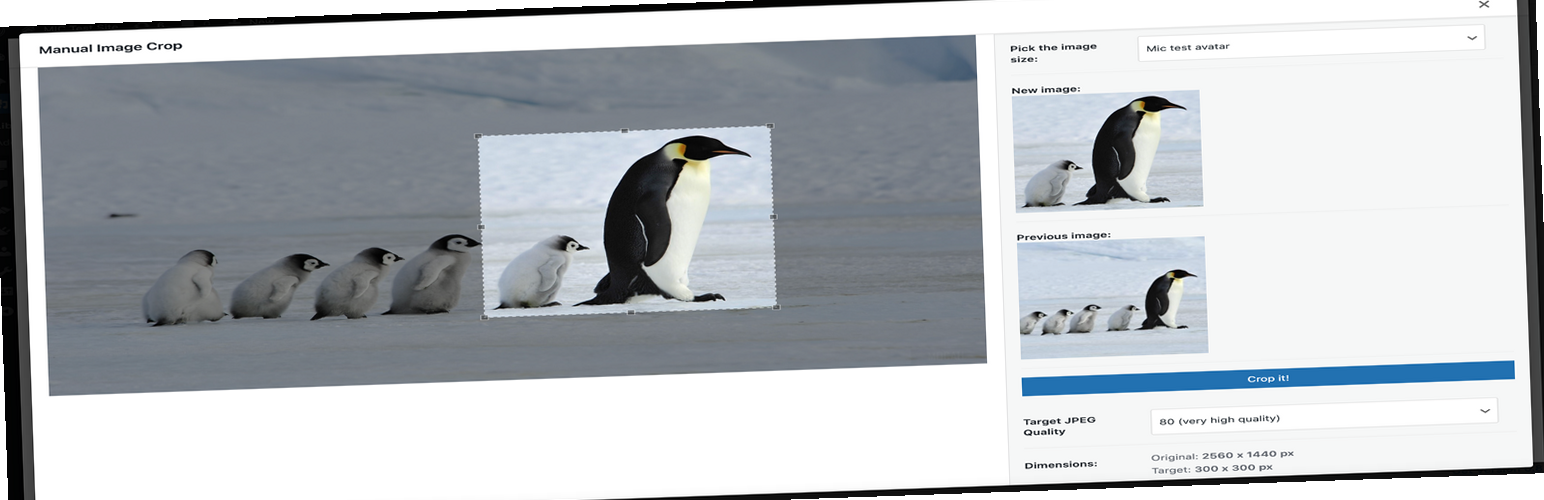
Plugin allows you to manually crop all the image sizes registered in your WordPress theme (in particular featu...

"Crop Thumbnails" made it easy to get exacly that specific image-detail you want to show in your fea...

ACF field that allows user to crop image to a specific aspect ratio or pixel size

Manually Crop and Resize thumbnail images that are uploaded in the Media section.

Dynamically generate only needed image sizes for only needed images, with manually selected focal point for cr...