
Weight based shipping methods for WooCommerce. Flexible shipping with table rate rules by cart weight and orde...
Free
100k+ installs 4.9★ (703)
The SnappBox WordPress plugin offers a fast and simple way to register and manage order deliveries. By installing this plugin, you can send your store …

SnappBox is a WordPress plugin designed to help you track and display delivery statuses within your WordPress site. It integrates with WooCommerce, allowing you to set up SnappBox as a shipping option during checkout. The plugin requires you to obtain an API token and configure various settings, including store location and shipping methods.
This plugin is suitable for WooCommerce store owners who want to manage delivery options and track orders directly from their WordPress dashboard. It supports features like cash on delivery, flat rate shipping, and free shipping based on minimum purchase amounts.
Best for: WooCommerce store owners looking to streamline their delivery tracking process.
What it does well
Where it falls short
SnappBox offers useful functionalities for managing delivery in WooCommerce, but its effectiveness may depend on user setup and support availability.
Snapp! Box's own description of SnappBox, lightly tidied.
SnappBox helps you track and display delivery statuses inside WordPress. This plugin provides:
Open your browser and go to:
https://snapp-box.com/wordpress-plugin
Click the “Download SnappBox Plugin for Free” button.
Fill out the displayed form (Business Name, Mobile Number, and Email) and click Submit.
After submitting, the plugin file will automatically be downloaded.
⚙️ Step 2: Install the Plugin in WordPress
Log in to your WordPress dashboard (wp-admin).
From the left menu, go to Plugins → Add New.
Click Upload Plugin and select the downloaded zip file.
After installation, click Activate Plugin.
⚠️ Note: WooCommerce must already be installed and activated.
🔑 Step 3: Obtain and Register the Token (Easier Method)
After activating the plugin, a SnappBox option will appear in the WordPress menu. Open it.
Click the “Get Token” button.
On the opened page, enter your store name and phone number.
Once submitted, your API Token will be displayed.
Copy this token and paste it into the relevant field at the top of the plugin settings page.
Click Save Settings.
🛠 Step 4: Plugin Basic Settings
Set Store Location
Store Information
Enable SnappBox Shipping Method
Select Cities and Regions
Shipping Payment Methods
Connect to WooCommerce Shipping Zones
Use SnappBox Wallet
✅ Step 5: Test and Verify Functionality
Place a test order and choose SnappBox on the checkout page.
In WooCommerce → Orders, open the order and make sure the SnappBox method is registered.
Track the delivery status from the WordPress panel or the SnappBox mobile app.
This plugin includes minified JavaScript and CSS files for optimal performance. The source code for all compressed files is available within the plugin.
This plugin uses external resources like Mapbox RTL Text Plugin, Snapp Maps Style, and Snapp Box configuration files loaded from official URLs.
Uses standard build tools with minified assets for performance and transparency according to WordPress guidelines.
Other plugins for shipping.
Weight based shipping methods for WooCommerce. Flexible shipping with table rate rules by cart weight and orde...
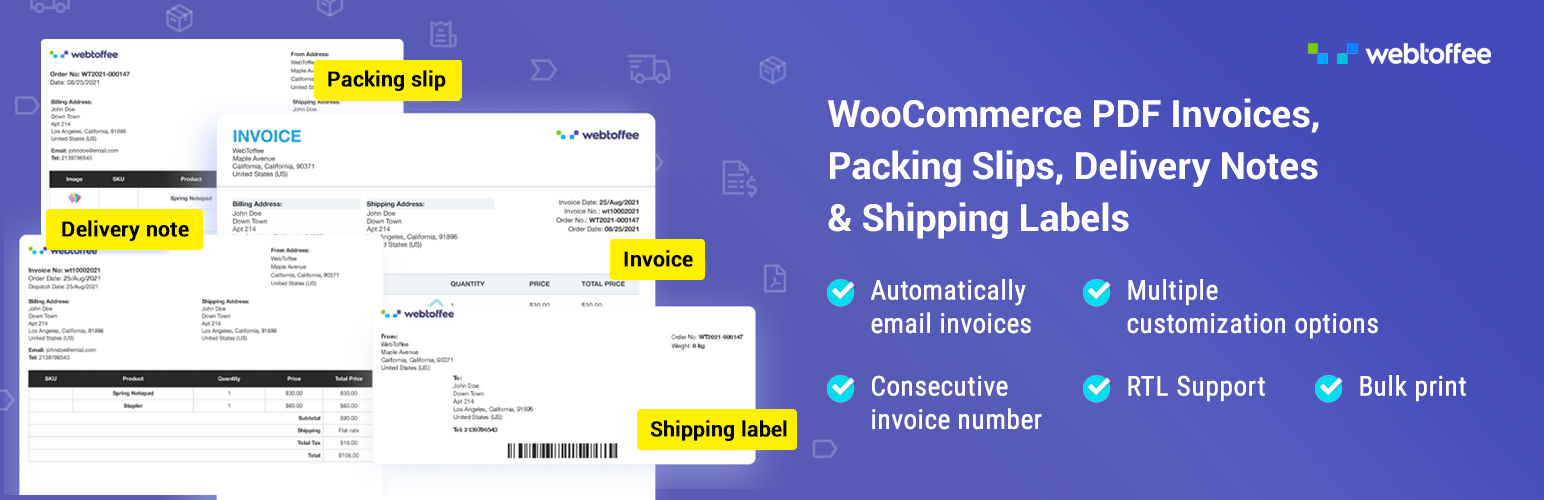
Auto-generate and attach WooCommerce PDF invoices and packing slips to order emails with customizable template...
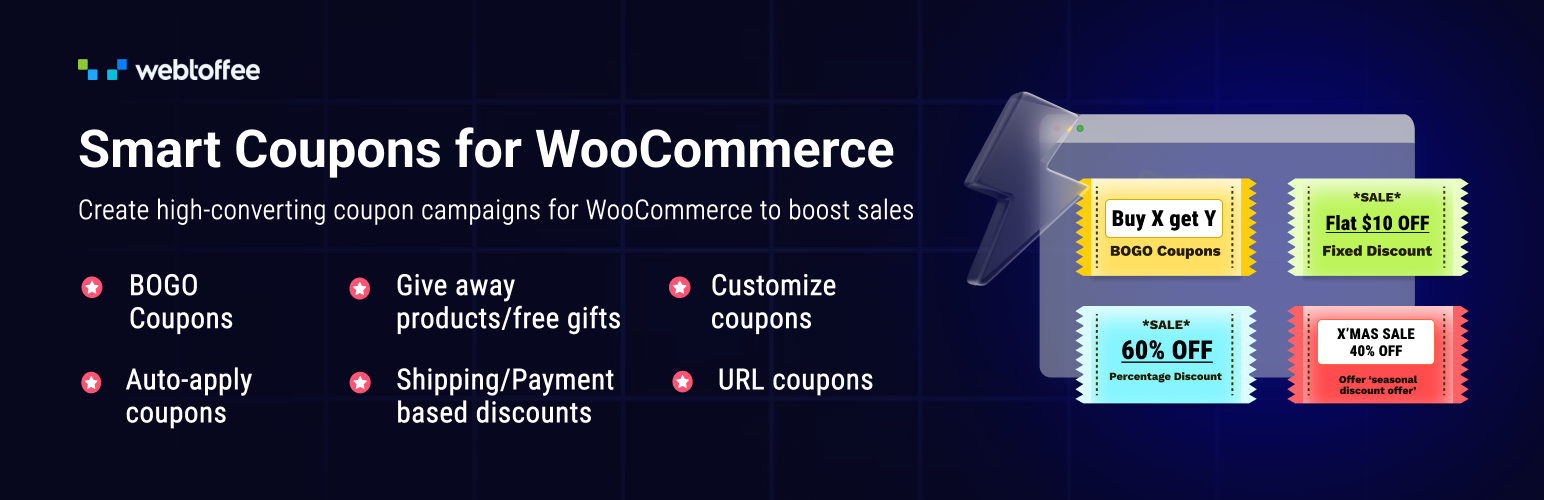
Best WooCommerce coupons plugin to create advanced coupons and discount codes with auto-apply, BOGO, free ship...
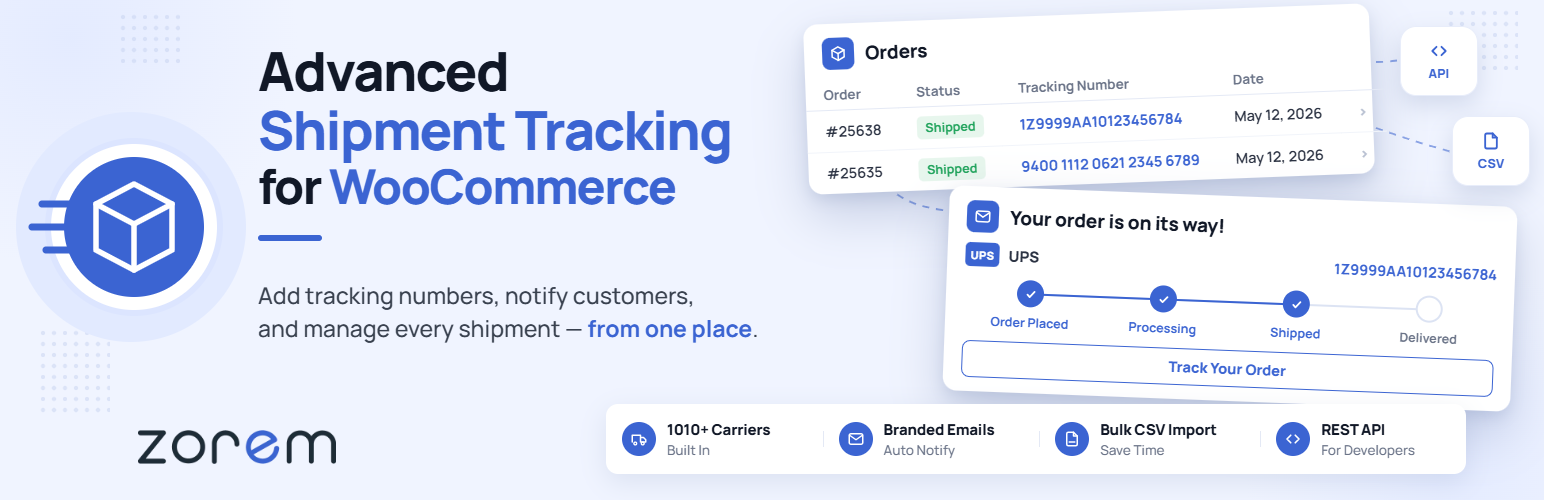
The #1 WooCommerce shipment tracking plugin. Add tracking, auto-update order status, send branded emails. 1010...
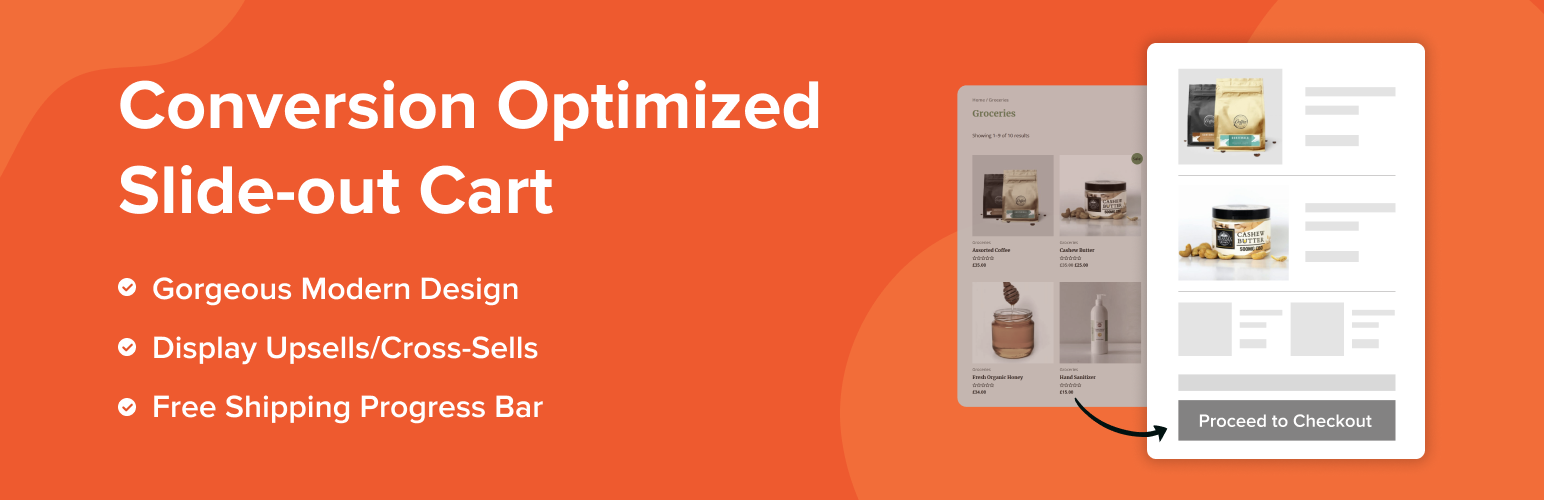
Modern Cart gives your store a side cart and free shipping bar so shoppers stay on the page, spend more to unl...
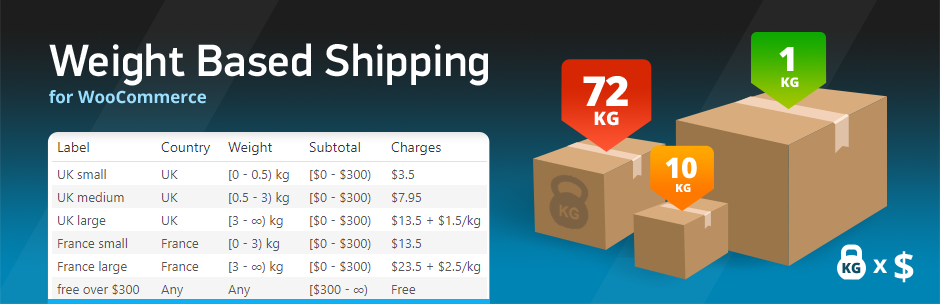
Weight Based Shipping is a flexible and widely-used solution to calculate shipping costs based on the total ca...