
Easy to use Under Construction Page & Coming Soon Page. Enable Under Construction Mode in seconds & sh...
Free
600k+ installs 4.8★ (1,285)
This plugin adds Phone Call and WhatsApp button on your webpage.

Click to Call or Chat Buttons is a WordPress plugin that allows you to add customizable buttons for direct calling via mobile phone and chatting on WhatsApp. You can configure the buttons' appearance, including colours, sizes, and positioning, and add custom text for each button.
The plugin is designed for users who want to enhance their website's communication options. It includes event tracking for Google Analytics, making it suitable for those who want to monitor user interactions with the buttons.
Best for: This plugin is suitable for website owners looking to improve communication with visitors through direct call and chat options.
What it does well
Where it falls short
Click to Call or Chat Buttons provides a straightforward solution for adding communication buttons to your site, though it may lack advanced features.
digitalblue's own description of Click to Call or Chat Buttons, lightly tidied.
A flexible module which adds two buttons that can be called directly by phone or WhatsApp.
This plugin adds two full configurable buttons on the website that allows direct dialing via mobile phone or WhatsApp with a simple click.
The buttons are fully configurable and offer the possibility to add a custom text.
You can change the colors, text size, edges and position of the buttons.
How to configure?
Fill in the phone numbers “Phone number to call” and “WhatsApp number to call” and the texts associated with them “Phone number (or text) to display” or “WhatsApp number (or text) to display”
The associated texts will only appear in the box if you fill them in with their icons.
It is recommended for phone numbers to contain the country code (prefix) and to be in a callable format (for example “+41987654321”). However, the associated texts can contain any text or any format of telephone numbers (for example “Call Us” or “0987.654.321”)
Choose the colors
If you do not want a specific color and prefere the element to be transparent, then delete the color from the corresponding field.
Set the positioning
In the “Topography” group set the active fields, display mode and position.
Also in “Restrict appearance” set on which pages the buttons will appear. If you select “Only on pages” or “Not on pages” then fill in the ID of the pages or posts separated by commas.
Set events tracking
If the Google Analytics tracking code is already added to the page, then choose the appropriate version to track events.
The module will automatically add the tracking script and you will be able to find the events in Google Analytics by clicking Behavior> Events> Overview
Save changes
After checking the completed fields, save the changes and retouch the appearance if necessary.
Finally
Other plugins for measuring traffic.
Easy to use Under Construction Page & Coming Soon Page. Enable Under Construction Mode in seconds & sh...
Manage Google AdSense ads, banners, ad rotation, sticky widgets, AMP ads, ads.txt, tracking, header and footer...
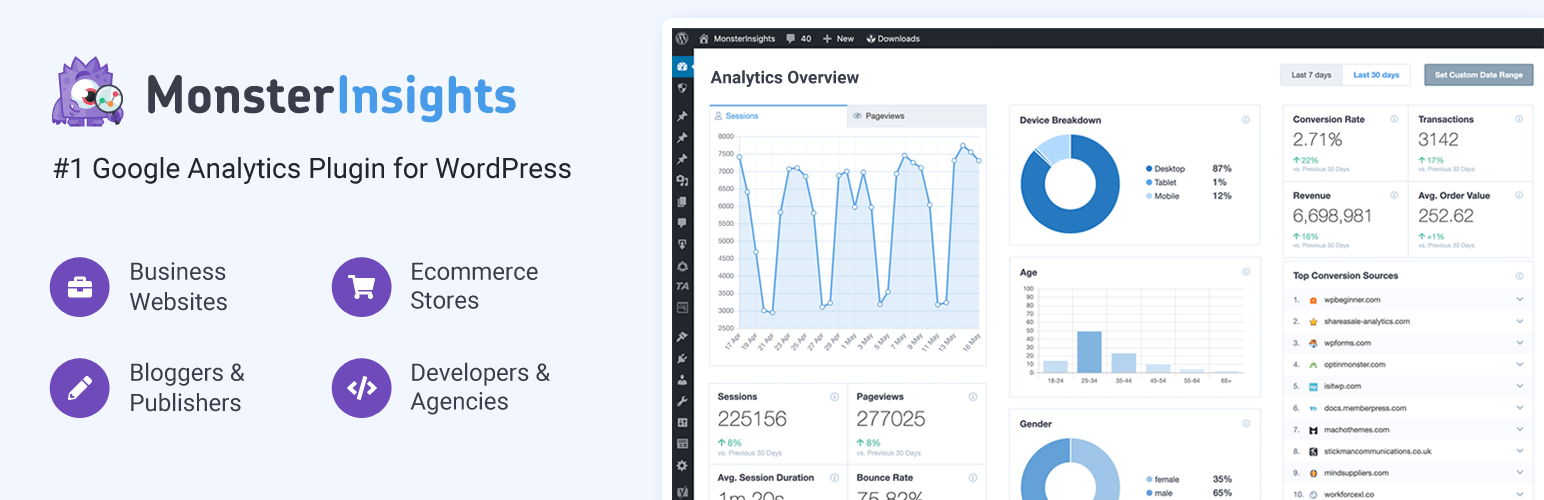
The best free Google Analytics plugin for WordPress. See how visitors find and use your website so you can gro...
Great looking maintenance, coming soon & under construction pages. Put your site under maintenance in minu...

Easily add tracking code snippets, conversion pixels, or other scripts required by third party services for an...

Adds Google Analytics tracking code to your WordPress site. Supports many tracking features.